# Quick Reference

Essential actions for navigating and using the SteelEngine workflow editor

A quick lookup for everyday actions in the SteelEngine workflow editor. For keyboard shortcuts, see [Keyboard Shortcuts](/keyboard-shortcuts).

**Mod** refers to `Cmd` on macOS and `Ctrl` on Windows/Linux.

## Workspaces

<table>
  <thead>
    <tr>
      <th>Action</th>

      <th>How</th>

      <th>Preview</th>
    </tr>
  </thead>

  <tbody>
    <tr>
      <td>
        Create a workspace
      </td>

      <td>
        Open the workspace switcher (click the workspace name, or 

        `Mod`

         \+ 

        `O`

        ) → 

        **New workspace**
      </td>

      <td>
[Video: Create workspace](https://d4h6f8f5tksdw.cloudfront.net/quick-reference/create-workspace.mp4)
      </td>
    </tr>

    <tr>
      <td>
        Switch workspaces
      </td>

      <td>
        Open the workspace switcher → pick a workspace, or type to search. URL changes to 

        `/{orgSlug}/{newWorkspaceSlug}/...`
      </td>

      <td>
[Video: Switch workspaces](https://d4h6f8f5tksdw.cloudfront.net/quick-reference/switch-workspace.mp4)
      </td>
    </tr>

    <tr>
      <td>
        Switch organization
      </td>

      <td>
        Open the workspace switcher → pick a workspace under another organization, or pick the organization in the left column first. URL changes to 

        `/{newOrgSlug}/{workspaceSlug}/...`
      </td>

      <td>
        —
      </td>
    </tr>

    <tr>
      <td>
        Invite team members
      </td>

      <td>
        Open the workspace switcher → 

        **Invite members**
      </td>

      <td>
[Video: Invite team members](https://d4h6f8f5tksdw.cloudfront.net/quick-reference/invite.mp4)
      </td>
    </tr>

    <tr>
      <td>
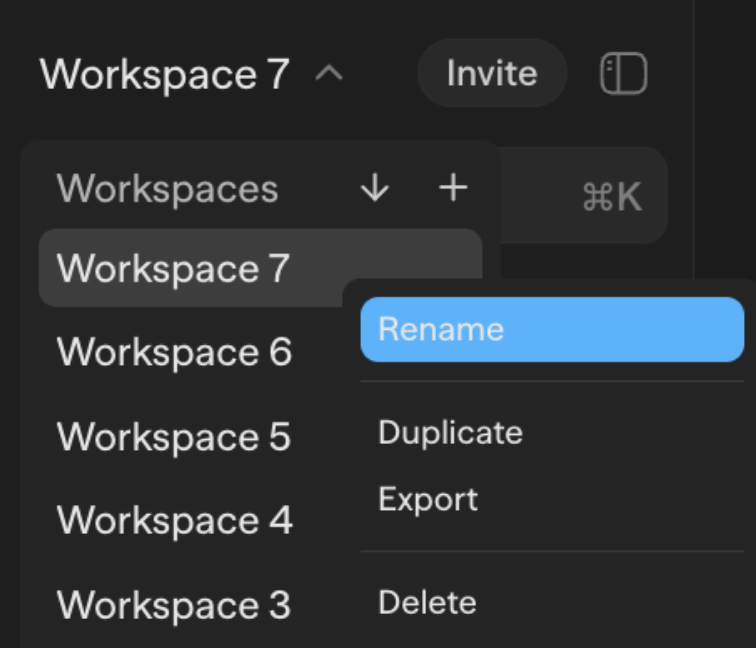
        Rename a workspace
      </td>

      <td>
        In the workspace switcher, right-click a workspace (or click its 

        **⋯**

        ) → 

        **Rename**
      </td>

      <td rowSpan="5">
![Workspace context menu](https://docs.steelengine.com/static/quick-reference/workspace-context-menu.png)
      </td>
    </tr>

    <tr>
      <td>
        Duplicate a workspace
      </td>

      <td>
        In the workspace switcher, right-click a workspace → 

        **Duplicate**
      </td>
    </tr>

    <tr>
      <td>
        Export a workspace
      </td>

      <td>
        In the workspace switcher, right-click a workspace → 

        **Export**
      </td>
    </tr>

    <tr>
      <td>
        Delete a workspace
      </td>

      <td>
        In the workspace switcher, right-click a workspace → 

        **Delete**
      </td>
    </tr>

    <tr>
      <td>
        Pin a workspace
      </td>

      <td>
        In the workspace switcher, right-click a workspace → 

        **Pin**

        . Pinned workspaces stay at the top of the switcher
      </td>
    </tr>
  </tbody>
</table>

## Workflows

<table>
  <thead>
    <tr>
      <th>Action</th>

      <th>How</th>

      <th>Preview</th>
    </tr>
  </thead>

  <tbody>
    <tr>
      <td>
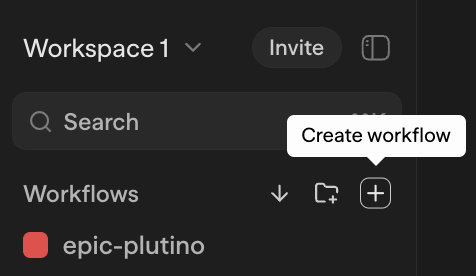
        Create a workflow
      </td>

      <td>
        Click 

        **+**

         button in sidebar
      </td>

      <td>
![Create workflow](https://docs.steelengine.com/static/quick-reference/create-workflow.png)
      </td>
    </tr>

    <tr>
      <td>
        Reorder / move workflows
      </td>

      <td>
        Drag workflow up/down or onto a folder
      </td>

      <td>
[Video: Reorder workflows](https://d4h6f8f5tksdw.cloudfront.net/quick-reference/reordering.mp4)
      </td>
    </tr>

    <tr>
      <td>
        Open the Workflows menu
      </td>

      <td>
        In the 

        **Workflows**

         header, click 

        **More actions**

         (

        `…`

        ): 

        **Import workflow**

        , 

        **Create folder**

        , 

        **Export client code**
      </td>

      <td>
        —
      </td>
    </tr>

    <tr>
      <td>
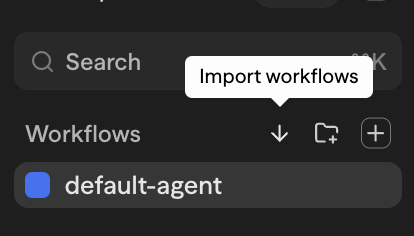
        Import a workflow
      </td>

      <td>
        **Workflows**

         header → 

        **More actions**

         (

        `…`

        ) → 

        **Import workflow**

         → Select file
      </td>

      <td>
![Import workflow](https://docs.steelengine.com/static/quick-reference/import-workflow.png)
      </td>
    </tr>

    <tr>
      <td>
        Multi-select workflows
      </td>

      <td>
        `Mod+Click`

         or 

        `Shift+Click`

         workflows in sidebar
      </td>

      <td>
[Video: Multi-select workflows](https://d4h6f8f5tksdw.cloudfront.net/quick-reference/multiselect.mp4)
      </td>
    </tr>

    <tr>
      <td>
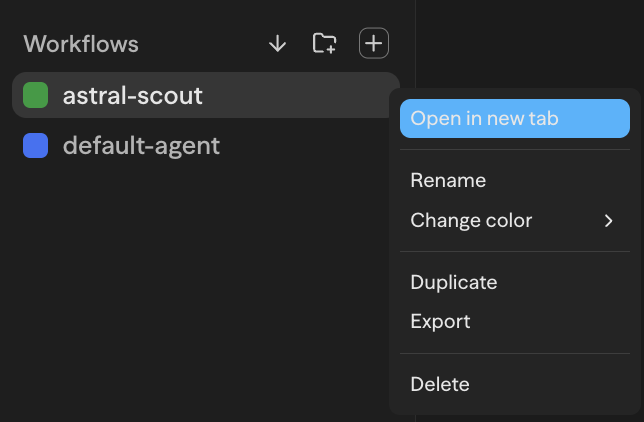
        Open in new tab
      </td>

      <td>
        Right-click workflow → 

        **Open in new tab**
      </td>

      <td rowSpan="8">
![Workflow context menu](https://docs.steelengine.com/static/quick-reference/workflow-context-menu.png)
      </td>
    </tr>

    <tr>
      <td>
        Rename a workflow
      </td>

      <td>
        Right-click workflow → 

        **Rename**
      </td>
    </tr>

    <tr>
      <td>
        Set an execution timeout
      </td>

      <td>
        Right-click one workflow → 

        **Execution timeout**

         → Enter seconds → 

        **Save**

        . Leave blank for platform defaults. See 

        [Workflow Timeouts](/execution#workflow-timeouts)

        .
      </td>
    </tr>

    <tr>
      <td>
        Assign workflow color
      </td>

      <td>
        Right-click workflow → 

        **Change color**
      </td>
    </tr>

    <tr>
      <td>
        Move a workflow to a folder
      </td>

      <td>
        Right-click workflow → 

        **Move to folder**

         → pick a folder, or 

        **(Root)**
      </td>
    </tr>

    <tr>
      <td>
        Duplicate a workflow
      </td>

      <td>
        Right-click workflow → 

        **Duplicate**
      </td>
    </tr>

    <tr>
      <td>
        Export a workflow
      </td>

      <td>
        Right-click workflow → 

        **Export**
      </td>
    </tr>

    <tr>
      <td>
        Delete a workflow
      </td>

      <td>
        Right-click workflow → 

        **Delete**
      </td>
    </tr>

    <tr>
      <td>
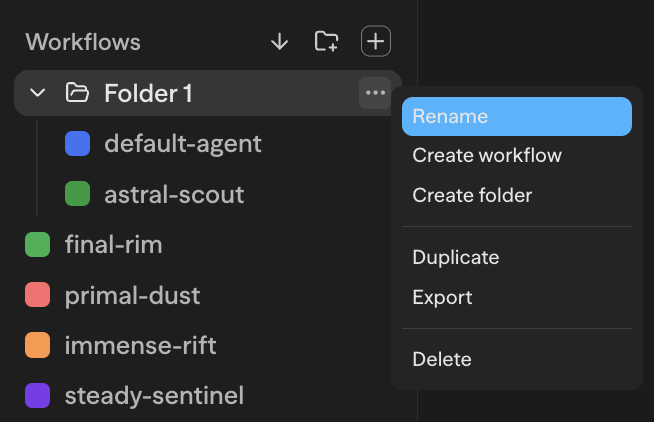
        Rename a folder
      </td>

      <td>
        Right-click folder → 

        **Rename**
      </td>

      <td rowSpan="6">
![Folder context menu](https://docs.steelengine.com/static/quick-reference/folder-context-menu.png)
      </td>
    </tr>

    <tr>
      <td>
        Create workflow in folder
      </td>

      <td>
        Right-click folder → 

        **Create workflow**
      </td>
    </tr>

    <tr>
      <td>
        Create folder in folder
      </td>

      <td>
        Right-click folder → 

        **Create folder**
      </td>
    </tr>

    <tr>
      <td>
        Duplicate a folder
      </td>

      <td>
        Right-click folder → 

        **Duplicate**
      </td>
    </tr>

    <tr>
      <td>
        Export a folder
      </td>

      <td>
        Right-click folder → 

        **Export**
      </td>
    </tr>

    <tr>
      <td>
        Delete a folder
      </td>

      <td>
        Right-click folder → 

        **Delete**
      </td>
    </tr>
  </tbody>
</table>

Protected workflows use a branch-first editing flow. Open **Source Control** in the workspace sidebar for Overview, Changes, Releases, and Settings. See the [workspace Source Control guide](/source-control/workspace-hub) for repository setup, protection, commits, pull requests, and deployment behavior.

## Chats & Folders

<table>
  <thead>
    <tr>
      <th>Action</th>

      <th>How</th>
    </tr>
  </thead>

  <tbody>
    <tr>
      <td>
        Create a chat folder
      </td>

      <td>
        Sidebar → 

        **+**

         menu next to "All chats" → 

        **Create folder**

         (give it a name and optional color)
      </td>
    </tr>

    <tr>
      <td>
        Move a chat into a folder
      </td>

      <td>
        Drag the chat onto a folder, or right-click → 

        **Move to folder**
      </td>
    </tr>

    <tr>
      <td>
        Move a chat back to root
      </td>

      <td>
        Drag onto the root drop zone below the chat list, or right-click → 

        **Move to folder**

         → 

        **(Root)**
      </td>
    </tr>

    <tr>
      <td>
        Reorder chats inside a folder
      </td>

      <td>
        Drag chats to reorder; persists across reloads
      </td>
    </tr>

    <tr>
      <td>
        Reorder folders
      </td>

      <td>
        Drag a folder header to reposition it in the tree
      </td>
    </tr>

    <tr>
      <td>
        Rename a chat or folder
      </td>

      <td>
        Right-click → 

        **Rename**
      </td>
    </tr>

    <tr>
      <td>
        Recolor a folder
      </td>

      <td>
        Right-click folder → 

        **Change color**

         → pick a swatch
      </td>
    </tr>

    <tr>
      <td>
        Delete a chat
      </td>

      <td>
        Right-click → 

        **Delete**

         (the chat is removed but the folder stays)
      </td>
    </tr>

    <tr>
      <td>
        Delete a folder
      </td>

      <td>
        Right-click folder → 

        **Delete**

        . 

        **Cascades:**

         every chat inside (and any nested folders) is deleted too
      </td>
    </tr>

    <tr>
      <td>
        Expand / collapse a folder
      </td>

      <td>
        Click the folder header. State is saved per browser
      </td>
    </tr>
  </tbody>
</table>

## Blocks

<table>
  <thead>
    <tr>
      <th>Action</th>

      <th>How</th>

      <th>Preview</th>
    </tr>
  </thead>

  <tbody>
    <tr>
      <td>
        Add a block
      </td>

      <td>
        Drag from Toolbar panel, or right-click canvas → 

        **Add Block**
      </td>

      <td>
[Video: Add a block](https://d4h6f8f5tksdw.cloudfront.net/quick-reference/add-block.mp4)
      </td>
    </tr>

    <tr>
      <td>
        Multi-select blocks
      </td>

      <td>
        `Mod+Click`

         additional blocks, or shift-drag to draw selection box
      </td>

      <td>
[Video: Multi-select blocks](https://d4h6f8f5tksdw.cloudfront.net/quick-reference/multiselect-blocks.mp4)
      </td>
    </tr>

    <tr>
      <td>
        Copy blocks
      </td>

      <td>
        `Mod+C`

         with blocks selected
      </td>

      <td rowSpan="2">
[Video: Copy and paste blocks](https://d4h6f8f5tksdw.cloudfront.net/quick-reference/copy-paste.mp4)
      </td>
    </tr>

    <tr>
      <td>
        Paste blocks
      </td>

      <td>
        `Mod+V`

         to paste copied blocks
      </td>
    </tr>

    <tr>
      <td>
        Duplicate blocks
      </td>

      <td>
        Right-click → 

        **Duplicate**
      </td>

      <td>
[Video: Duplicate blocks](https://d4h6f8f5tksdw.cloudfront.net/quick-reference/duplicate-block.mp4)
      </td>
    </tr>

    <tr>
      <td>
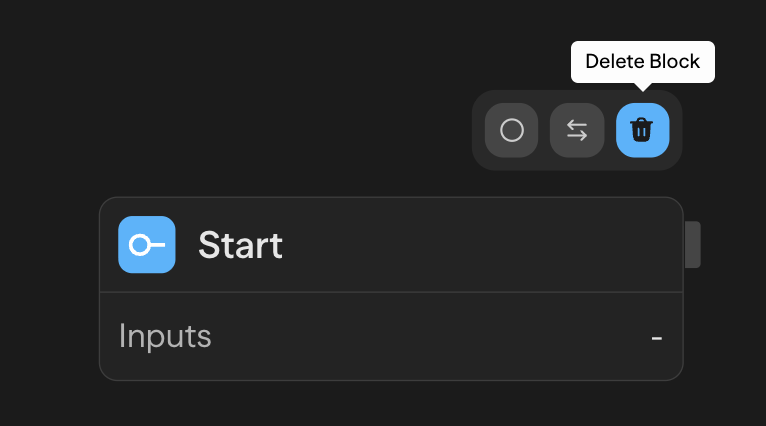
        Delete blocks
      </td>

      <td>
        `Delete`

         or 

        `Backspace`

         key, or right-click → 

        **Delete**
      </td>

      <td>
![Delete block](https://docs.steelengine.com/static/quick-reference/delete-block.png)
      </td>
    </tr>

    <tr>
      <td>
        Rename a block
      </td>

      <td>
        Click block name in header, or edit in the Editor panel
      </td>

      <td>
[Video: Rename a block](https://d4h6f8f5tksdw.cloudfront.net/quick-reference/rename-block.mp4)
      </td>
    </tr>

    <tr>
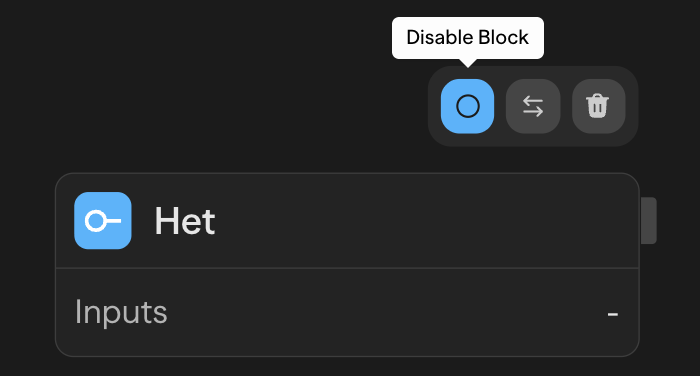
      <td>
        Enable/Disable a block
      </td>

      <td>
        Right-click → 

        **Enable/Disable**
      </td>

      <td>
![Disable block](https://docs.steelengine.com/static/quick-reference/disable-block.png)
      </td>
    </tr>

    <tr>
      <td>
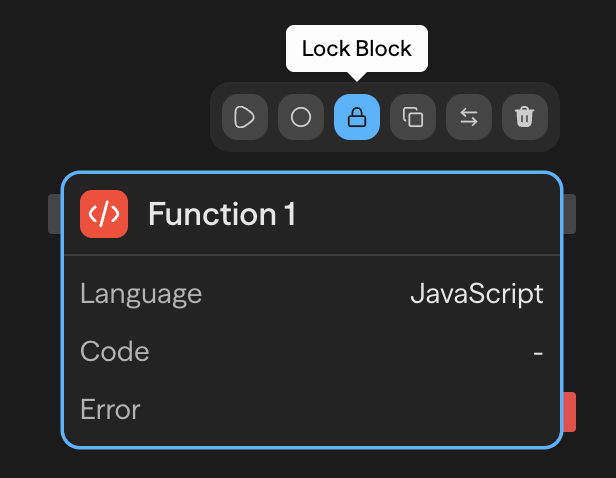
        Lock/Unlock a block
      </td>

      <td>
        Hover block → Click lock icon (Admin only)
      </td>

      <td>
![Lock block](https://docs.steelengine.com/static/quick-reference/lock-block.png)
      </td>
    </tr>

    <tr>
      <td>
        Toggle handle orientation
      </td>

      <td>
        Right-click → 

        **Flip Handles**
      </td>

      <td>
[Video: Toggle handle orientation](https://d4h6f8f5tksdw.cloudfront.net/quick-reference/toggle-handles.mp4)
      </td>
    </tr>

    <tr>
      <td>
        Configure a block
      </td>

      <td>
        Select block → use Editor panel on right
      </td>

      <td>
[Video: Configure a block](https://d4h6f8f5tksdw.cloudfront.net/quick-reference/configure-block.mp4)
      </td>
    </tr>
  </tbody>
</table>

## Connections

<table>
  <thead>
    <tr>
      <th>Action</th>

      <th>How</th>

      <th>Preview</th>
    </tr>
  </thead>

  <tbody>
    <tr>
      <td>
        Create a connection
      </td>

      <td>
        Drag from output handle to input handle
      </td>

      <td>
[Video: Connect blocks](https://d4h6f8f5tksdw.cloudfront.net/quick-reference/connect-blocks.mp4)
      </td>
    </tr>

    <tr>
      <td>
        Delete a connection
      </td>

      <td>
        Click edge to select → 

        `Delete`

         key
      </td>

      <td>
[Video: Delete connection](https://d4h6f8f5tksdw.cloudfront.net/quick-reference/delete-connection.mp4)
      </td>
    </tr>

    <tr>
      <td>
        Bundle connections into one tidy path
      </td>

      <td>
        Hold 

        `Alt`

         (

        `Option`

         on macOS) and drag across two or more connections, or right-click canvas → 

        **Tidy wires into a bundle**

         and drag. See 

        [Keyboard Shortcuts](/keyboard-shortcuts#wire-ties)
      </td>

      <td />
    </tr>

    <tr>
      <td>
        Bundle the connections of every block
      </td>

      <td>
        Right-click canvas → 

        **Bundle wires from each block**

        , or click the bundle button at the right end of the canvas toolbar. Connecting a second wire from a block bundles that block for you
      </td>

      <td />
    </tr>

    <tr>
      <td>
        Draw connections as smooth cables or right angles
      </td>

      <td>
        Click the wire style button in the wire group at the right end of the canvas toolbar. The setting is kept on your device. See 

        [Keyboard Shortcuts](/keyboard-shortcuts#wire-style)
      </td>

      <td />
    </tr>

    <tr>
      <td>
        Use output in another block
      </td>

      <td>
        Drag connection tag into input field
      </td>

      <td>
[Video: Use connection tag](https://d4h6f8f5tksdw.cloudfront.net/quick-reference/connection-tag.mp4)
      </td>
    </tr>
  </tbody>
</table>

## Panels & Views

<table>
  <thead>
    <tr>
      <th>Action</th>

      <th>How</th>

      <th>Preview</th>
    </tr>
  </thead>

  <tbody>
    <tr>
      <td>
        Search toolbar
      </td>

      <td>
        `Mod+F`
      </td>

      <td>
[Video: Search toolbar](https://d4h6f8f5tksdw.cloudfront.net/quick-reference/search-toolbar.mp4)
      </td>
    </tr>

    <tr>
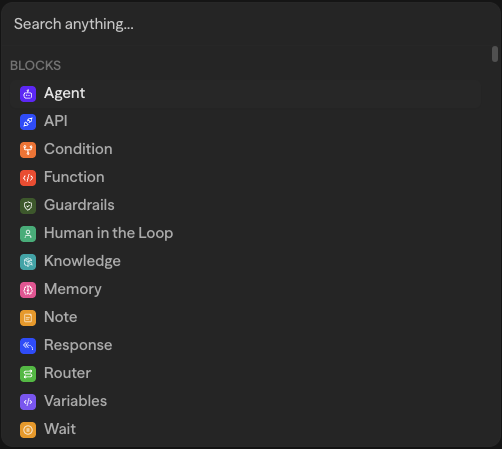
      <td>
        Search everything
      </td>

      <td>
        `Mod+K`
      </td>

      <td>
![Search everything](https://docs.steelengine.com/static/quick-reference/search-everything.png)
      </td>
    </tr>

    <tr>
      <td>
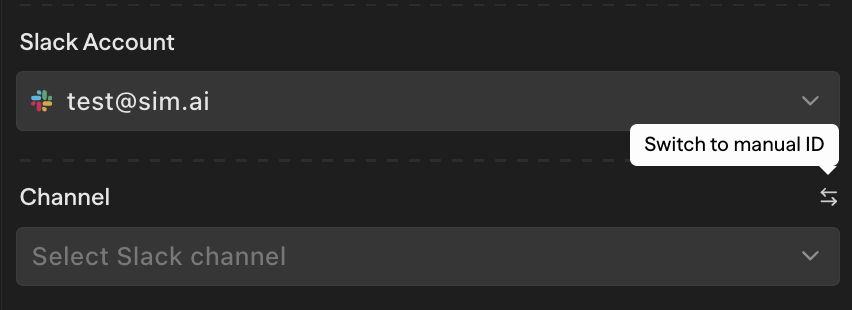
        Toggle manual mode
      </td>

      <td>
        Click 

        **Switch to manual ID**

         next to a selector field to type a value. Click 

        **Switch to selector**

         to go back
      </td>

      <td>
![Toggle manual mode](https://docs.steelengine.com/static/quick-reference/toggle-manual-mode.png)
      </td>
    </tr>

    <tr>
      <td>
        Collapse/expand sidebar
      </td>

      <td>
        Click collapse button on sidebar
      </td>

      <td>
[Video: Collapse sidebar](https://d4h6f8f5tksdw.cloudfront.net/quick-reference/collapse-sidebar.mp4)
      </td>
    </tr>

    <tr>
      <td>
        Open the sidebar on a phone
      </td>

      <td>
        Tap the menu button at the top left of the page. Tap outside the sidebar, press 

        `Esc`

        , or open a page to close it
      </td>

      <td />
    </tr>
  </tbody>
</table>

## Running & Testing

<table>
  <thead>
    <tr>
      <th>Action</th>

      <th>How</th>

      <th>Preview</th>
    </tr>
  </thead>

  <tbody>
    <tr>
      <td>
        Run workflow
      </td>

      <td>
        Click Run Workflow button or 

        `Mod+Enter`
      </td>

      <td>
![Run workflow](https://docs.steelengine.com/static/quick-reference/run-workflow.png)
      </td>
    </tr>

    <tr>
      <td>
        Stop workflow
      </td>

      <td>
        Click Stop button or 

        `Mod+Enter`

         while running
      </td>

      <td>
![Stop workflow](https://docs.steelengine.com/static/quick-reference/stop-workflow.png)
      </td>
    </tr>

    <tr>
      <td>
        Test with chat
      </td>

      <td>
        Use the floating 

        **Chat**

         panel (right-click canvas → 

        **Open Chat**

        ). This test panel runs the workflow. It is not the 

        **Assistant**

         tab
      </td>

      <td>
![Test with chat](https://docs.steelengine.com/static/quick-reference/test-chat.png)
      </td>
    </tr>

    <tr>
      <td>
        Select output to view
      </td>

      <td>
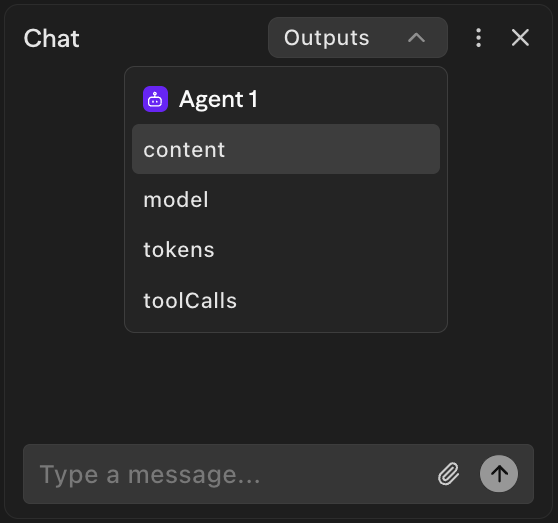
        Click the 

        **Outputs**

         dropdown in the Chat panel → Select block output
      </td>

      <td>
![Select output to view](https://docs.steelengine.com/static/quick-reference/output-select.png)
      </td>
    </tr>

    <tr>
      <td>
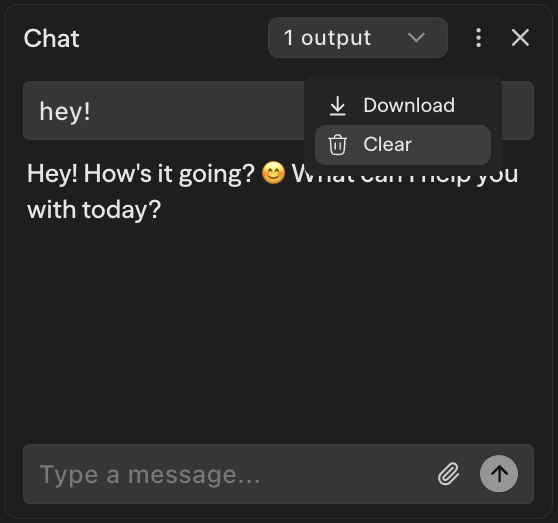
        Clear chat history
      </td>

      <td>
        Chat panel → 

        **More options**

         → 

        **Clear**
      </td>

      <td>
![Clear chat history](https://docs.steelengine.com/static/quick-reference/clear-chat.png)
      </td>
    </tr>

    <tr>
      <td>
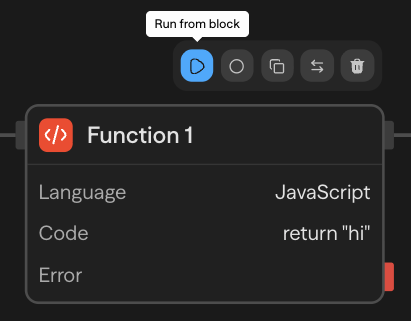
        Run from block
      </td>

      <td>
        Hover block → Click play button, or right-click → 

        **Run from block**
      </td>

      <td>
![Run from block](https://docs.steelengine.com/static/quick-reference/run-from-block.png)
      </td>
    </tr>

    <tr>
      <td>
        Run until block
      </td>

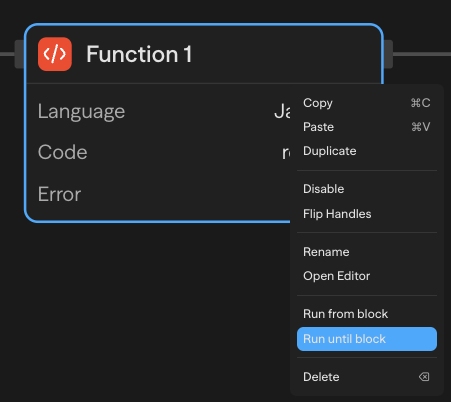
      <td>
        Right-click block → 

        **Run until block**
      </td>

      <td>
![Run until block](https://docs.steelengine.com/static/quick-reference/run-until-block.png)
      </td>
    </tr>

    <tr>
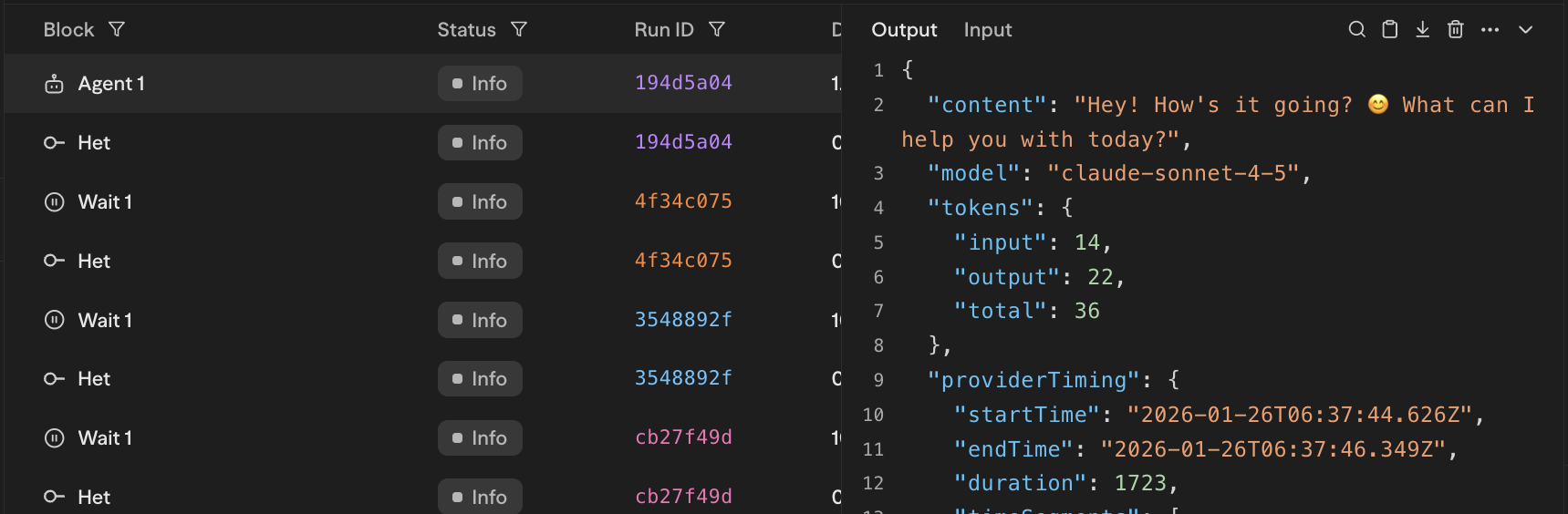
      <td>
        View execution logs
      </td>

      <td>
        Open terminal panel at bottom, or 

        `Mod+L`
      </td>

      <td>
![Execution logs terminal](https://docs.steelengine.com/static/quick-reference/terminal.png)
      </td>
    </tr>

    <tr>
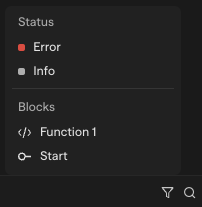
      <td>
        Filter logs
      </td>

      <td>
        Click filter icon in terminal → Filter by block or status
      </td>

      <td>
![Filter logs by block](https://docs.steelengine.com/static/quick-reference/filter-block.png)
      </td>
    </tr>

    <tr>
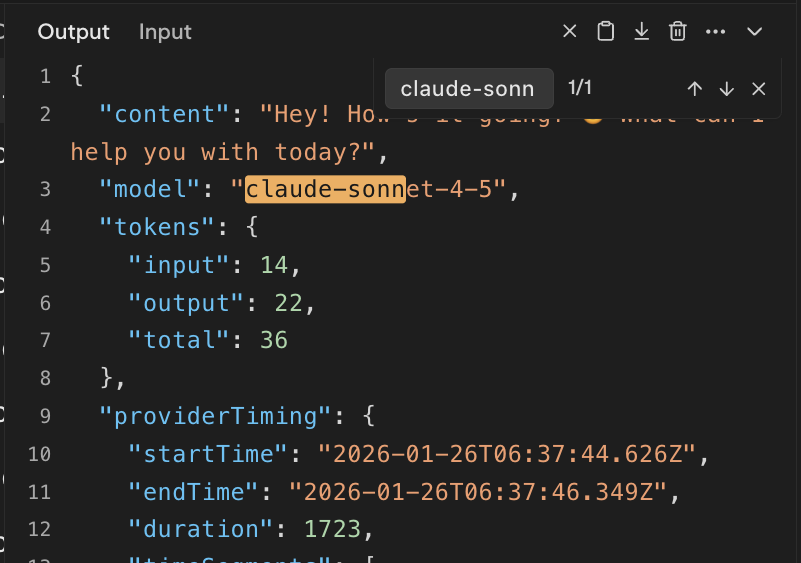
      <td>
        Search logs
      </td>

      <td>
        Use the 

        **Search**

         field in the terminal
      </td>

      <td>
![Search logs](https://docs.steelengine.com/static/quick-reference/terminal-search.png)
      </td>
    </tr>

    <tr>
      <td>
        Copy log entry
      </td>

      <td>
        Copy icon in the log detail view, or right-click log entry → 

        **Copy Run ID**
      </td>

      <td>
![Copy log entry](https://docs.steelengine.com/static/quick-reference/copy-log.png)
      </td>
    </tr>

    <tr>
      <td>
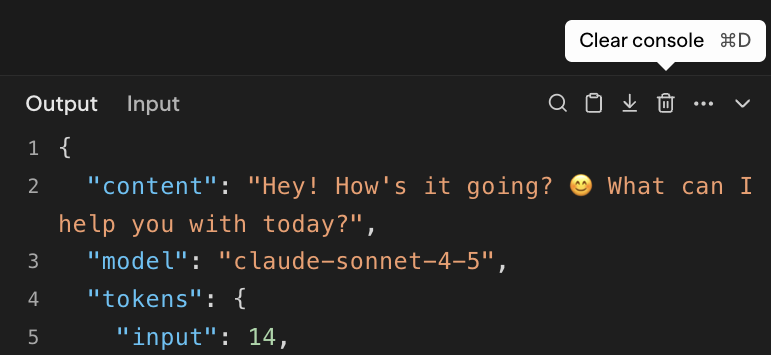
        Clear terminal
      </td>

      <td>
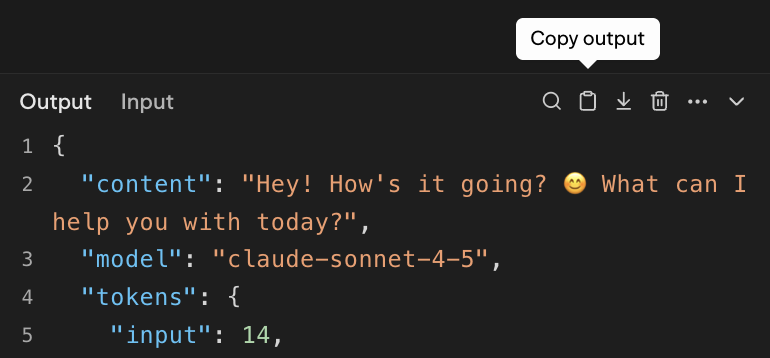
        Trash icon or 

        `Mod+D`
      </td>

      <td>
![Clear terminal](https://docs.steelengine.com/static/quick-reference/clear-terminal.png)
      </td>
    </tr>
  </tbody>
</table>

## Deployment

<table>
  <thead>
    <tr>
      <th>Action</th>

      <th>How</th>

      <th>Preview</th>
    </tr>
  </thead>

  <tbody>
    <tr>
      <td>
        Deploy a workflow
      </td>

      <td>
        Click 

        **Deploy**

         button in panel
      </td>

      <td>
![Deploy workflow](https://docs.steelengine.com/static/quick-reference/deploy.png)
      </td>
    </tr>

    <tr>
      <td>
        Update deployment
      </td>

      <td>
        Click 

        **Update**

         when changes are detected
      </td>

      <td>
![Update deployment](https://docs.steelengine.com/static/quick-reference/update-deployment.png)
      </td>
    </tr>

    <tr>
      <td>
        View deployment status
      </td>

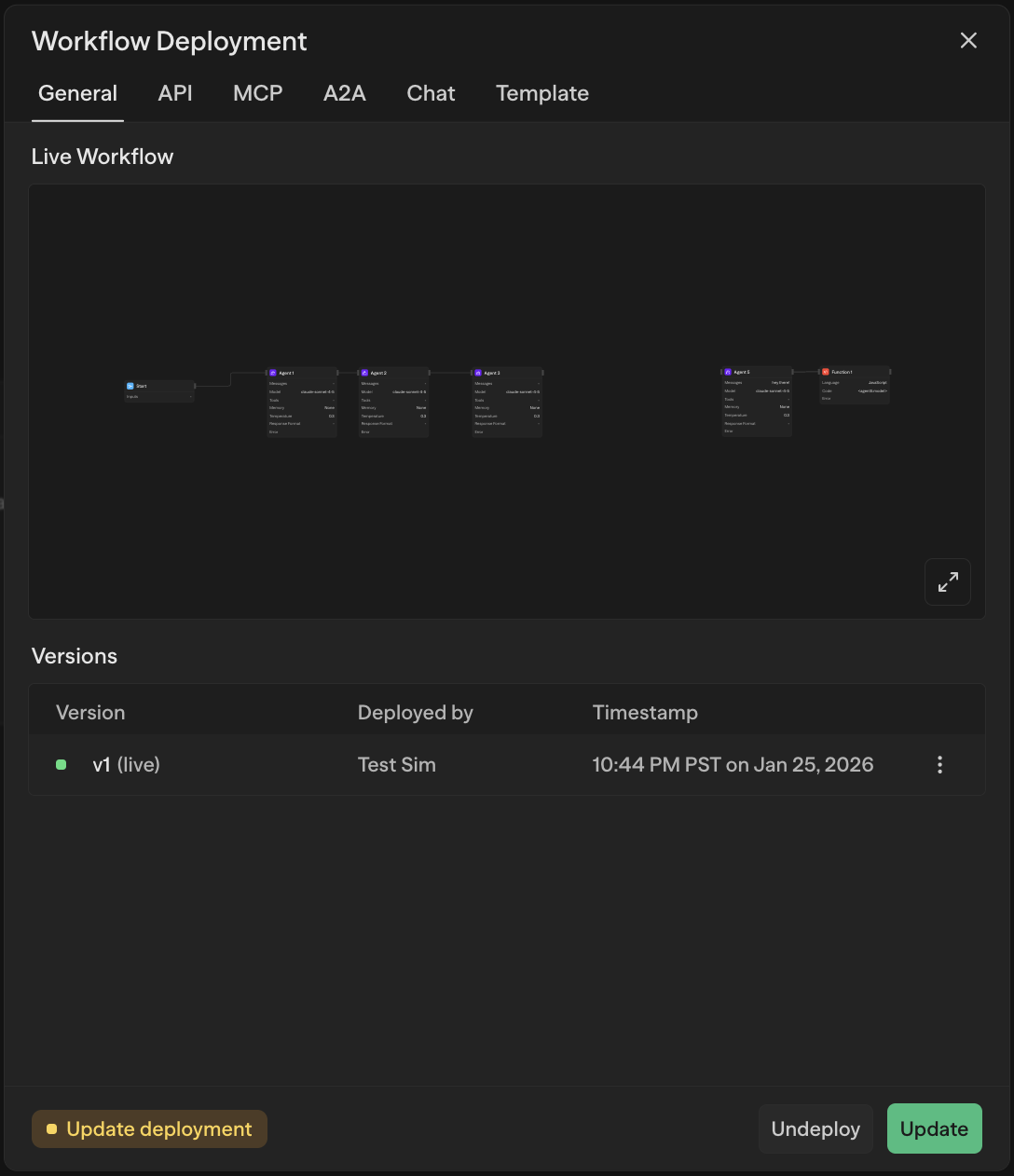
      <td>
        Check status indicator (Live/Update/Deploy) in Deploy tab
      </td>

      <td>
![View deployment status](https://docs.steelengine.com/static/quick-reference/view-deployment.png)
      </td>
    </tr>

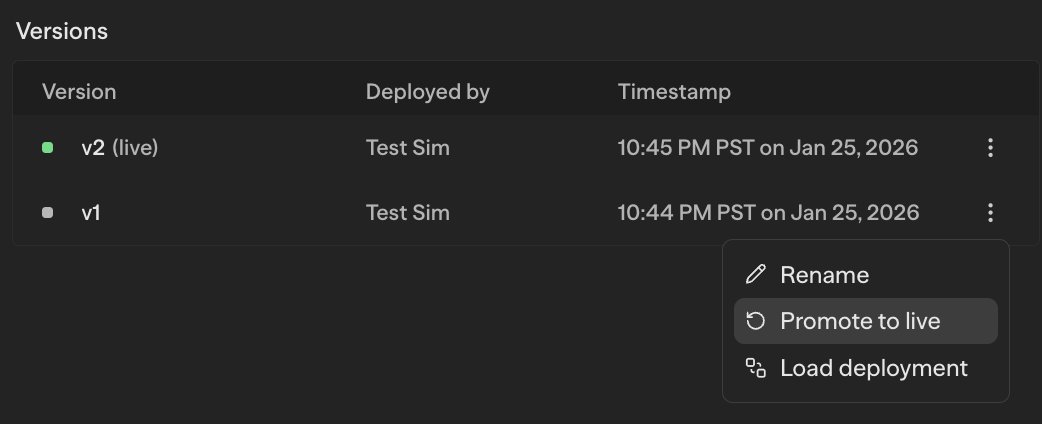
    <tr>
      <td>
        Revert deployment
      </td>

      <td>
        Access previous versions in Deploy tab → 

        **Promote to live**
      </td>

      <td>
![Promote deployment to live](https://docs.steelengine.com/static/quick-reference/promote-deployment.png)
      </td>
    </tr>

    <tr>
      <td>
        Add version description
      </td>

      <td>
        Deploy tab → Click description icon → Add or generate description
      </td>

      <td>
[Video: Add deployment version description](https://d4h6f8f5tksdw.cloudfront.net/quick-reference/deployment-description.mp4)
      </td>
    </tr>

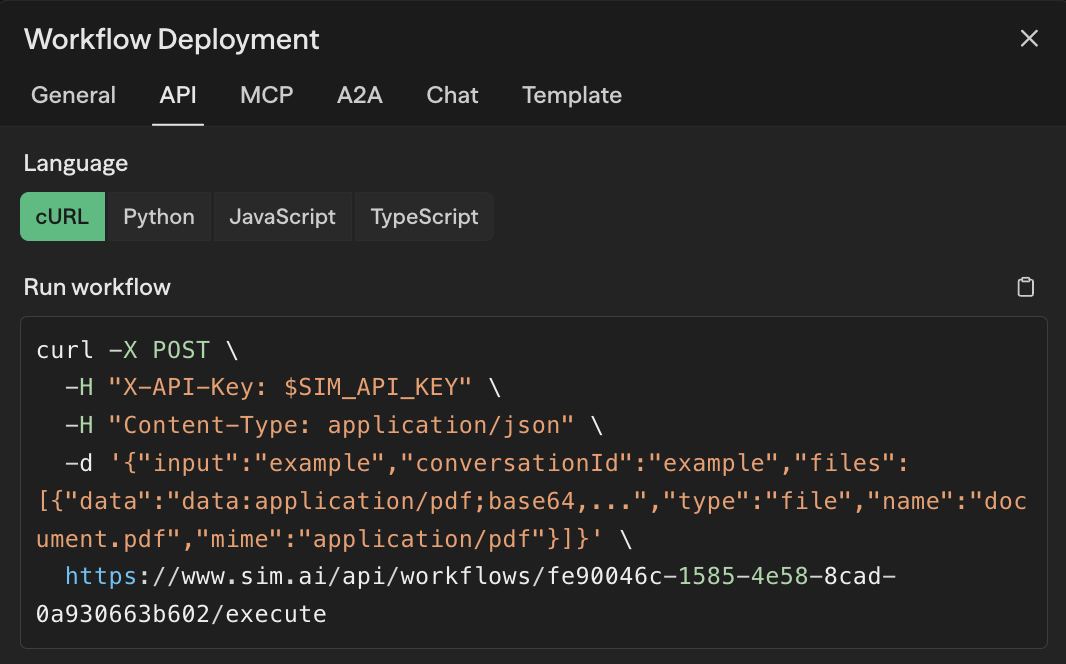
    <tr>
      <td>
        Copy API endpoint
      </td>

      <td>
        Deploy tab → API → Copy API cURL
      </td>

      <td>
![Copy API endpoint](https://docs.steelengine.com/static/quick-reference/copy-api.png)
      </td>
    </tr>
  </tbody>
</table>

## Variables

<table>
  <thead>
    <tr>
      <th>Action</th>

      <th>How</th>

      <th>Preview</th>
    </tr>
  </thead>

  <tbody>
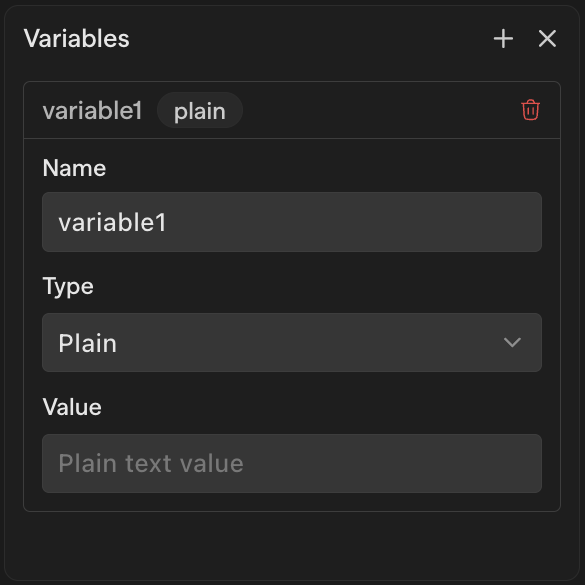
    <tr>
      <td>
        Add / Edit / Delete workflow variable
      </td>

      <td>
        Panel -> Variables -> 

        **Add Variable**

        , click to edit, or delete icon
      </td>

      <td>
![Variables panel](https://docs.steelengine.com/static/quick-reference/variables.png)
      </td>
    </tr>

    <tr>
      <td>
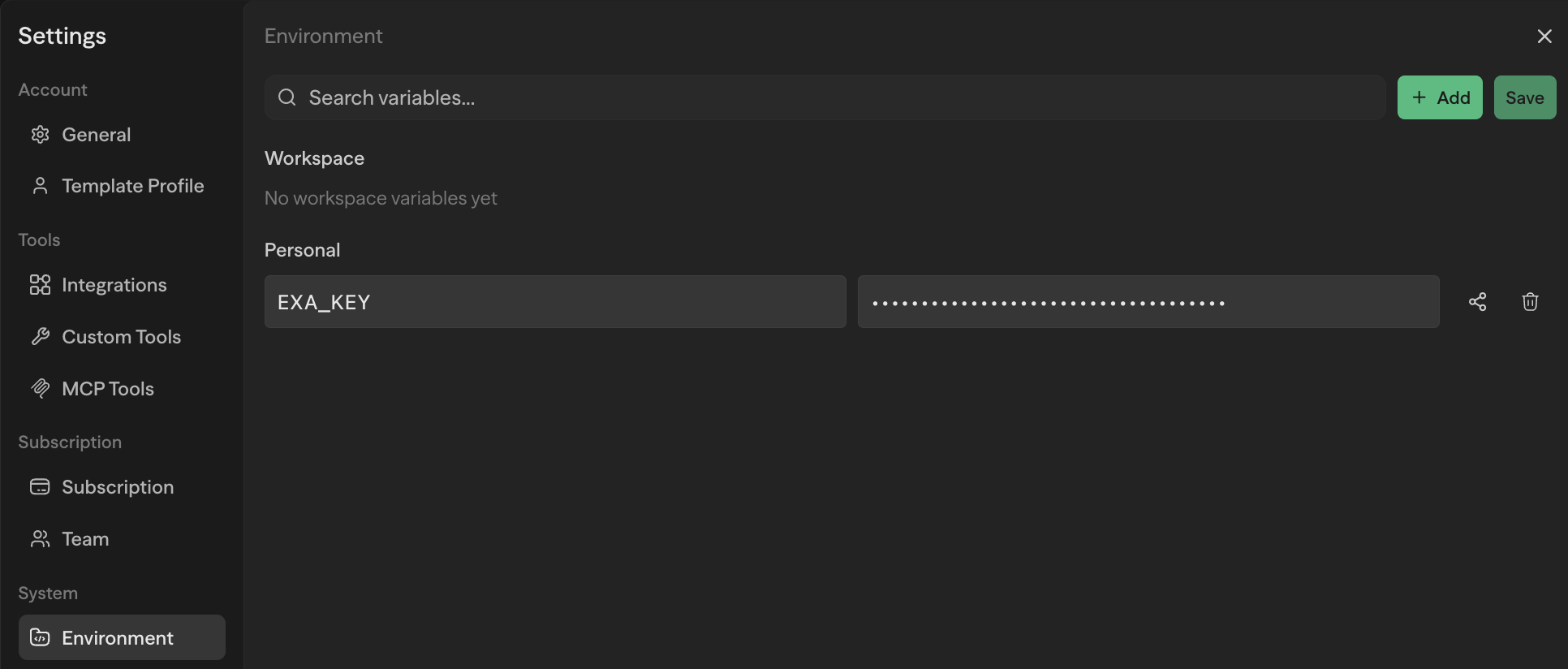
        Add environment variable
      </td>

      <td>
        Workspace Settings → 

        **Secrets**

         → 

        **Add**
      </td>

      <td>
![Add environment variable](https://docs.steelengine.com/static/quick-reference/add-env-variable.png)
      </td>
    </tr>

    <tr>
      <td>
        Manage provider API keys
      </td>

      <td>
        Workspace Settings → 

        **BYOK**

         on hosted or self-hosted installations. Authorized readers see masked keys; BYOK managers can add, update, or delete them. Organization keys are labeled as inherited. See 

        [Bring Your Own Key](/credentials/bring-your-own-key)

        .
      </td>

      <td>
        —
      </td>
    </tr>

    <tr>
      <td>
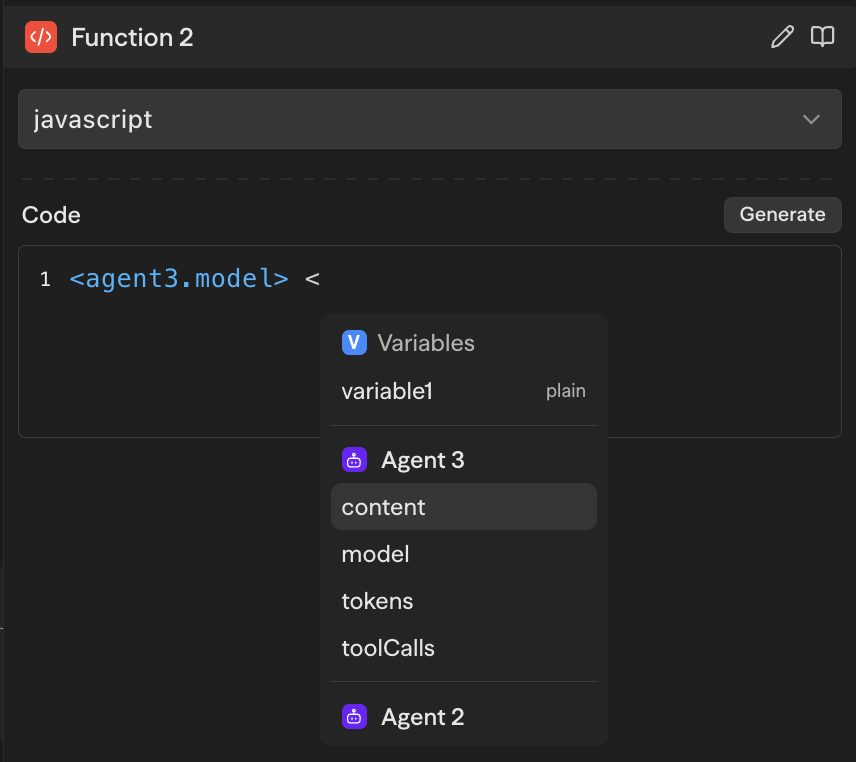
        Reference a workflow variable
      </td>

      <td>
        Use 

        `<blockName.itemName>`

         syntax in block inputs
      </td>

      <td>
![Reference workflow variable](https://docs.steelengine.com/static/quick-reference/variable-reference.png)
      </td>
    </tr>

    <tr>
      <td>
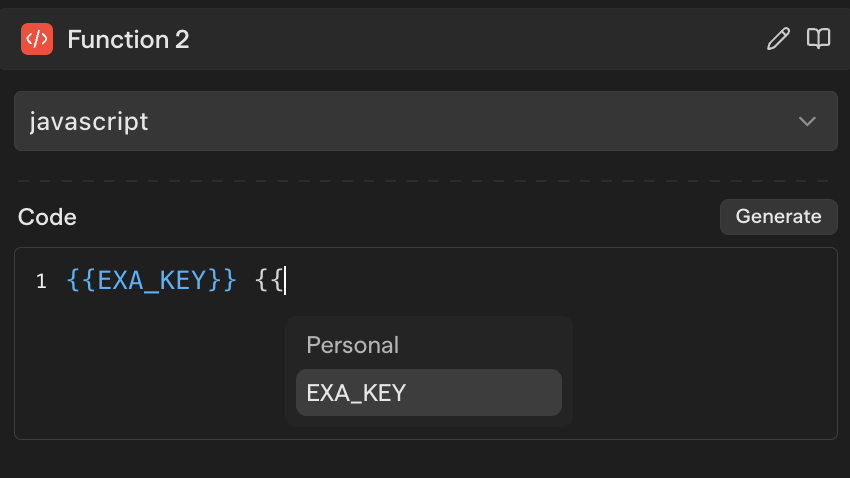
        Reference an environment variable
      </td>

      <td>
        Use 

        `{{ENV_VAR}}`

         syntax in block inputs
      </td>

      <td>
![Reference environment variable](https://docs.steelengine.com/static/quick-reference/env-variable-reference.png)
      </td>
    </tr>
  </tbody>
</table>