When you open Chat inside the workflow editor, it carries the current workflow as context. It reads the workflow you have open, understands the blocks and connections that already exist, and can explain, edit, debug, and improve that workflow from natural language.
For workspace-wide work across workflows, tables, files, knowledge bases, and scheduled jobs, open a Chat from Home instead.
Chat is included with hosted SteelEngine plans. Self-hosted deployments need the assistant backend key configured in COPILOT_API_KEY (the variable keeps its legacy name).
What Chat Can Do
Chat can work directly against the current workflow:
- Add, configure, connect, and delete workflow blocks
- Edit existing block settings without rebuilding the whole workflow
- Explain what the workflow does and how data flows through it
- Debug failed runs by reading execution logs and current block state
- Suggest leaner block choices, better models, safer credentials, and cleaner data flow
On a protected workflow, Chat can read main but cannot edit it. Create or select a source-control branch first; Chat then writes to that branch's autosaved working copy.
Modes
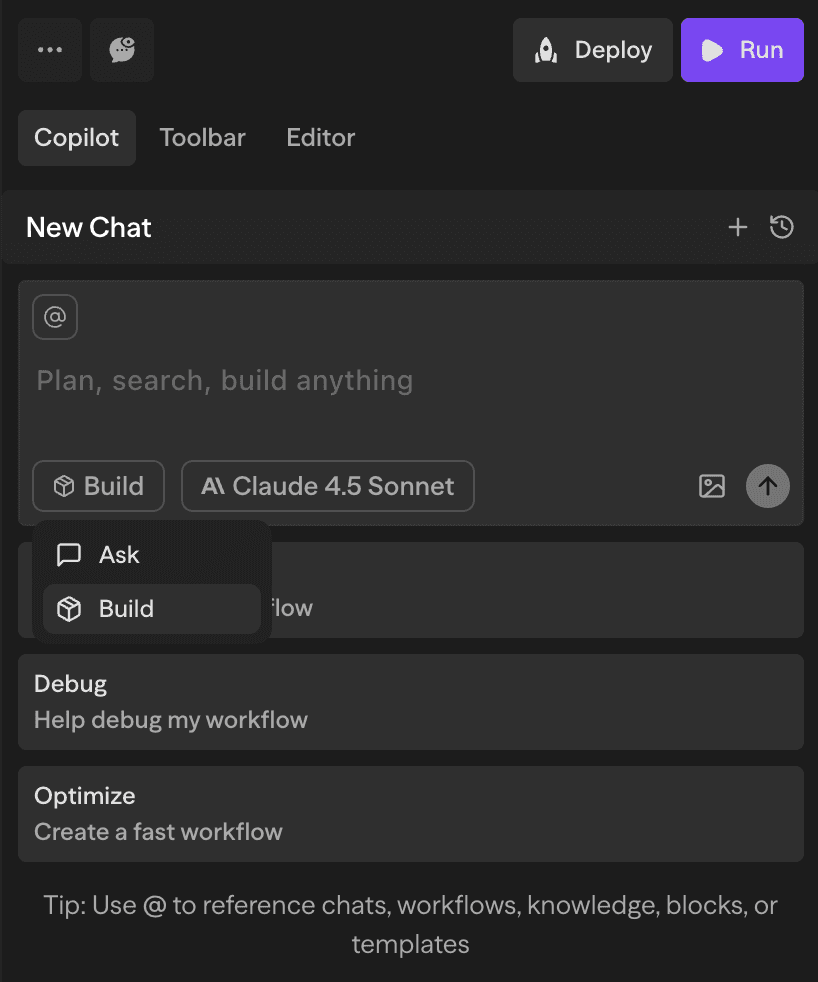
Use the mode selector at the bottom of the Chat input to choose how much agency Chat has.
Ask
Read-only help. Chat can inspect and explain, but it cannot create, edit, or delete workflow resources.
Build
Workflow editing mode. Chat can add blocks, wire connections, update settings, and debug issues.
Plan
Planning mode. Chat drafts the exact implementation steps without making changes.
Models
Use the model selector at the bottom of the Chat input to choose the model for the next workflow-scoped response. Faster models are better for quick explanations and small edits; stronger models are better for deep debugging and complex workflow design.
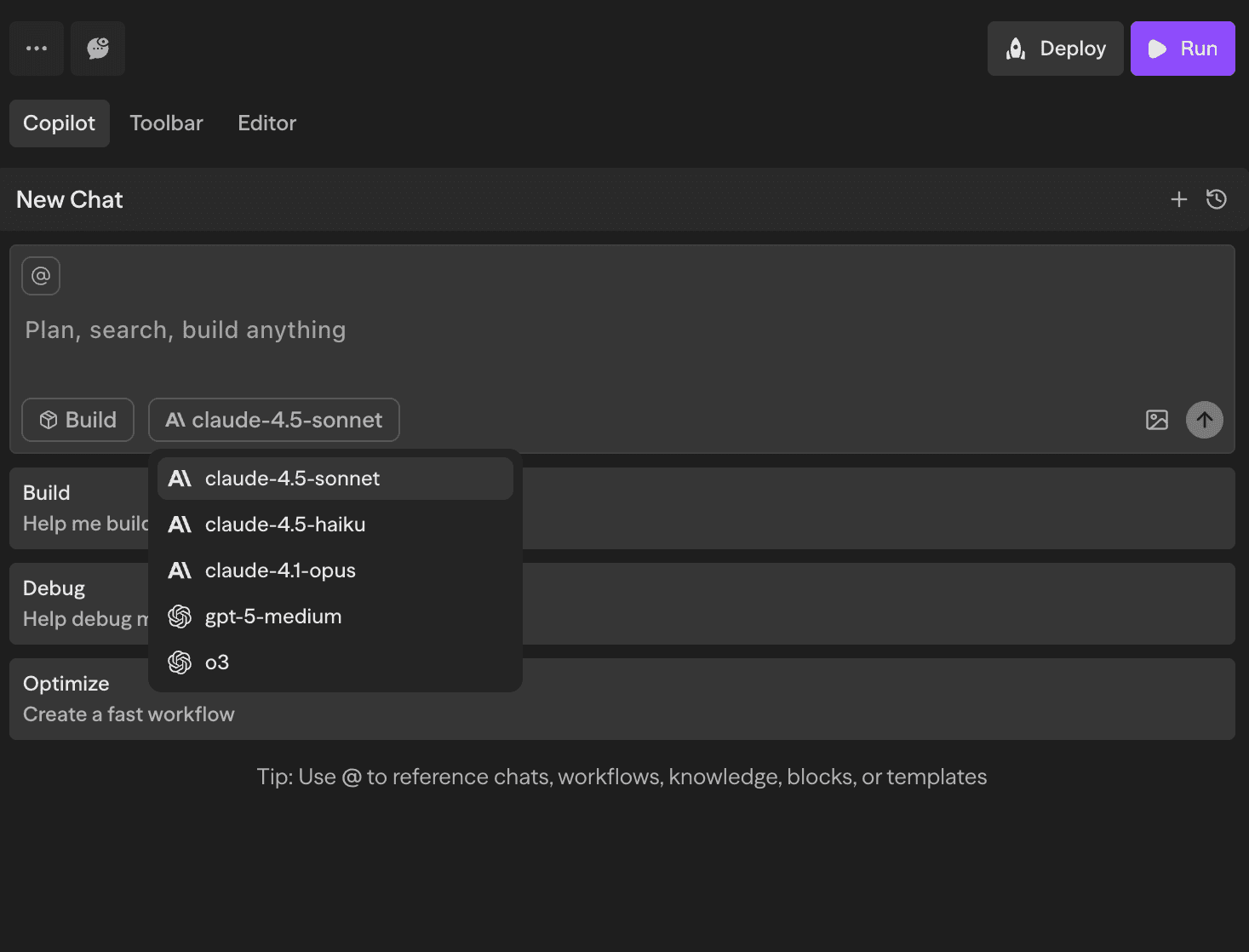
The available model list is loaded dynamically from SteelEngine's assistant backend, so it may change as new models are rolled out.
Context
Chat automatically receives the current workflow as context. You can add more context from the input:
- Type
@to reference workflows, workflow blocks, logs, knowledge bases, tables, files, docs, templates, or prior chats - Use the
+menu to attach workspace resources or files - Drag workspace resources into the input when you want Chat to use them
When you ask Chat to edit an existing workflow, it reads what is already there before applying changes. You do not need to restate the current blocks, connections, or settings unless you want to override them.
Chat History
Click History in the Chat header to see past conversations for the current workflow. You can resume any chat, start a new one, or delete old chats you no longer need.
File Attachments
Click the attachment icon or drag files into the input to include files with your message. Chat can use images, PDFs, text files, JSON, XML, and other document formats as context.
Checkpoints
When Chat modifies a workflow, it saves a checkpoint of the previous workflow state.
To revert, hover over the Chat message that made the change, open the checkpoint menu, and choose the state you want to restore. Reverting cannot be undone, so review the checkpoint before confirming.
Thinking Blocks
For complex requests, Chat may show an expandable thinking block while it works. These blocks make long-running edits easier to follow without mixing hidden reasoning into the final answer.
Usage
Chat usage is billed per token and counts toward your plan's credit usage. If you reach your limit, enable on-demand billing from Settings → Subscription.
See the Cost Calculation page for billing and plan details.