Production workspaces
Lock a workspace to a production branch and synchronize reviewed changes through GitHub
A production workspace follows one Git branch, such as prod. Its workflows and folders are read-only. Development happens in a separate workspace, and approved snapshots arrive through the existing GitHub App webhook and background Worker.
This flow supports two workspaces in the same SteelEngine installation. Organization Releases continue to serve separate installations and their broader release plans.
Connect a production workspace
- Connect the development workspace to a repository and a branch such as
developusing Connect GitHub. - Select Create workspace, name the production workspace, and check Start without a workflow. Create it in the same organization as development. It must have no workflows, folders, repository binding, or Organization Release enrollment, including archived definitions.
- Open Source Control > Settings and find Use this workspace for production.
- Choose the development workspace and production branch. The repository and managed path come from development. Enable branch creation only if needed; a new branch starts at the repository default branch.
- Choose whether approved changes should deploy automatically. This is off by default.
- Select Connect and lock production workspace.
You need settings authority and read access to every workflow in both workspaces. Automatic jobs recheck the authority of the administrator who last saved production settings. If that access is revoked, another authorized administrator must save the settings before synchronization can continue.
The source workspace, repository path, and branch mapping become fixed. Deployment policy and production resource assignments remain configurable. Use another empty workspace for a different mapping.
Selecting Production in an ordinary repository binding only labels that binding. To lock workflows and deploy from a branch, use Connect and lock production workspace. You do not also save an ordinary binding in the target workspace.
Saving production settings queues synchronization of the current production branch. When automatic deployment is enabled, that can publish an already-approved commit immediately; it does not wait for another merge.
Promote a change
- Edit workflows in development.
- Open Source Control > Changes, capture the workspace, review it, commit it, and open its capture PR.
- Merge the capture PR into
develop. - Open a promotion PR from
developtoprod. The production overview links to the GitHub comparison. Review and merge it. - The signed GitHub push hook queues synchronization. The Worker verifies the repository, branch head, merged PRs, and exact retained capture contents before updating production.
- With automatic deployment off, review the synchronized workspace and select Deploy synced version. With it on, the Worker deploys after validation succeeds.
A newly created production branch may already contain the current capture. A merged promotion PR is still required. Make and review the next development change to create a promotion diff.
The overview distinguishes the latest observed branch commit, synchronized workspace, and last successful deployment. A synchronized draft does not change the currently running version until deployment. Workflow removals are retired at deployment as well.
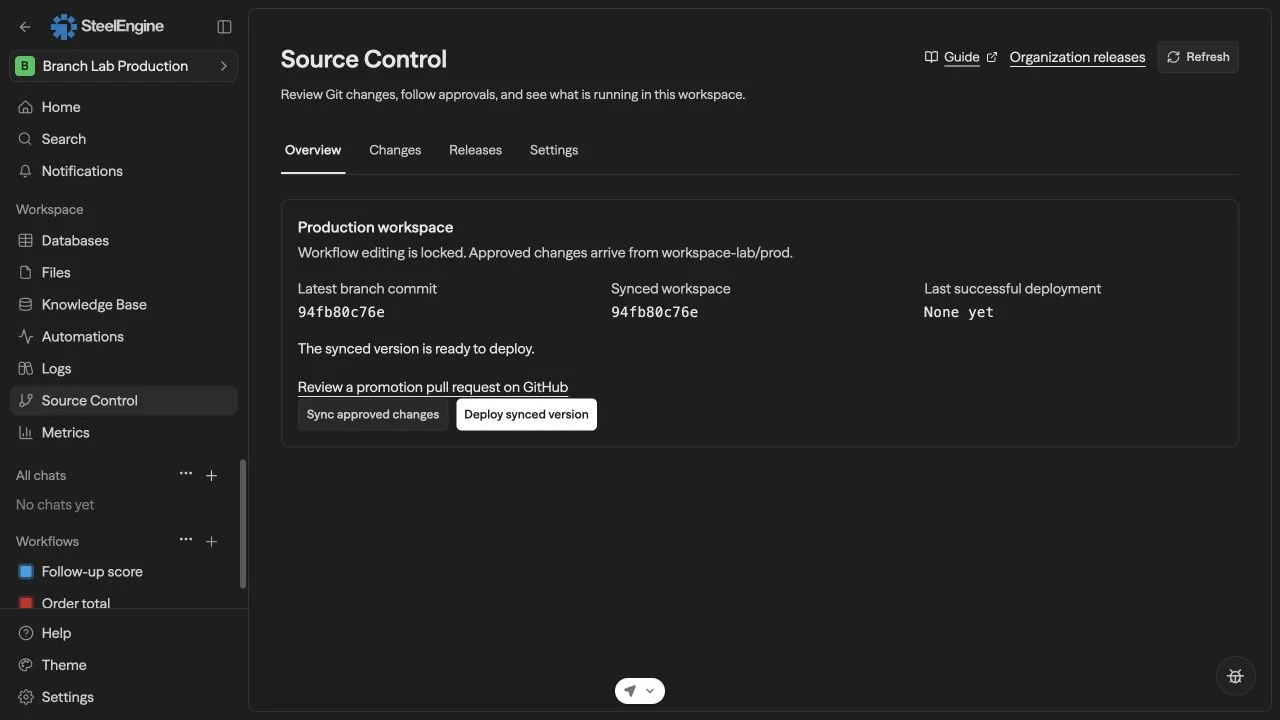
Local walkthrough
Watch the 32-second production workspace walkthrough. It shows empty workspace creation, branch locking, capture review, manual publication, and a second automatically deployed release. This step recording is assembled from local browser screenshots; GitHub merge screens and waiting time are omitted. The numbered instructions above provide the same procedure without video.
The rehearsal used two workspaces on one local installation, real GitHub capture and promotion PRs, Postgres, Redis, and a Temporal Worker. Because GitHub cannot deliver to localhost directly, signed push payloads were replayed into the local webhook endpoint. The app fetched the actual GitHub commits and verified approval before applying them.
Both workflows ran successfully after manual and automatic deployment. Production retained stable workflow IDs and used its own BRANCH_LAB_LABEL workspace environment value; the development value was not copied. Duplicate delivery created no extra deployment versions, an older event was skipped, an invalid signature returned 401, and production workflow writes returned 409.
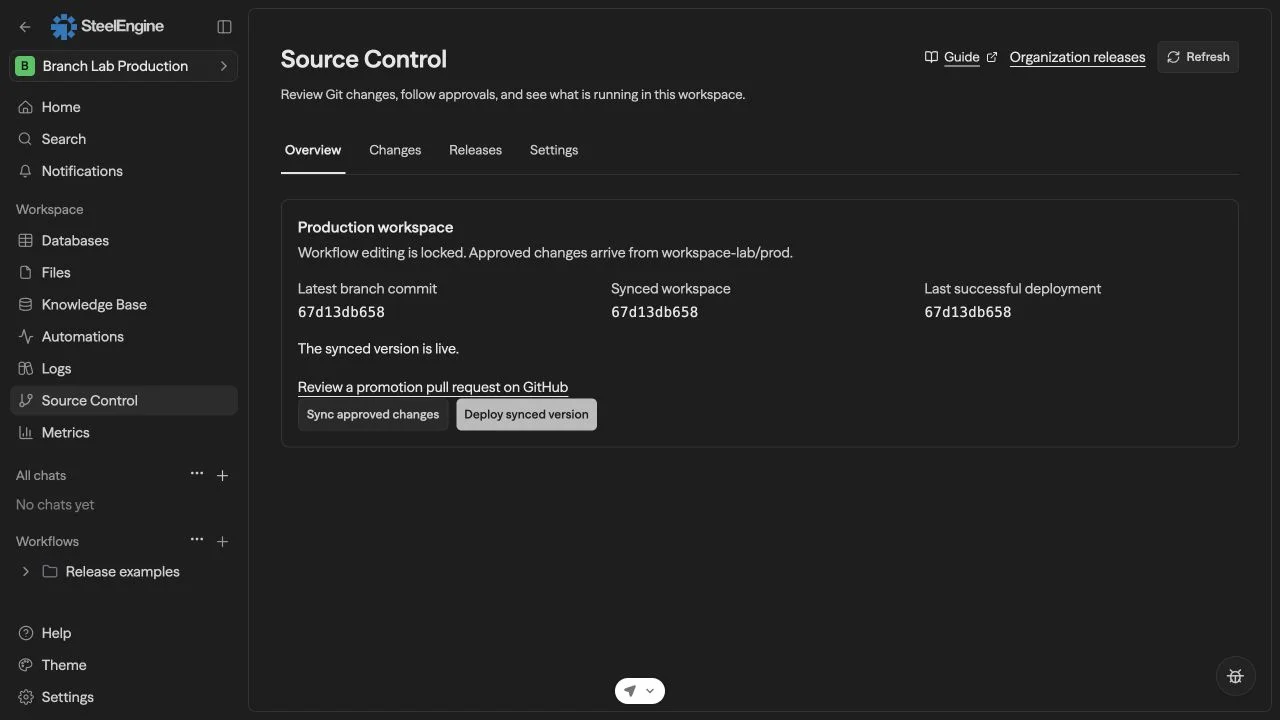
Configure production resources
After the development capture exists, production settings show its credential, environment, and BYOK requirements. Assign production credential IDs, workspace environment keys, and provider IDs, then save settings. Values are validated against production before synchronization can succeed. Secrets are not copied from development or committed to Git.
For environment placeholders in code or text, create the referenced key in the production workspace's Secrets settings. For example, the same {{BRANCH_LAB_LABEL}} placeholder can resolve to DEVELOPMENT in development and PRODUCTION in production. Resource roles shown in production settings still require their explicit assignments.
Child workflows included in the snapshot receive stable production IDs, and their selectors are remapped. This release flow copies workflow definitions and folders; it does not copy tables, knowledge bases, files, custom tools, or skills. References to those resources must already resolve inside production. Dynamic or unresolved child-workflow references prevent synchronization.
Failure and recovery
- Invalid or unreviewed snapshots leave the previous live versions intact. Fix the reported error, save resource assignments if needed, and select Sync approved changes.
- Repeated hooks reuse the same release operation. Stale commits and obsolete settings revisions cannot move the workspace backward.
- Scheduled reconciliation recovers missed hooks. The UI refreshes affected queries and receives editor notifications without reloading the page.
- Rewriting production branch history is rejected. Use a reviewed revert commit on the existing history to roll back code.
- Deployment activates workflows sequentially. There can be a brief mix of versions during rollout. If a later workflow fails, the Worker attempts to restore previous versions, schedules, and webhook configuration; an unsuccessful restoration is reported for operator attention. This is not an atomic workspace-wide traffic switch.
- Emergency unpublishing remains available through existing authorized controls. The overview detects a mismatch from the last successful deployment. Save production settings and deploy again to restore the branch version.
Self-hosted installations need the existing Source Control GitHub App webhook configuration, Temporal service, and background Worker. Apply the database migrations and roll out compatible web and Worker versions together before enrolling production workspaces.