Workspace Source Control
Capture every workspace workflow, review exact changes, commit, and open a pull request
The Source Control workspace page connects a repository and reviews all saved workflows together. Open Source Control from the workspace sidebar, then Changes. Each capture retains a fixed snapshot; later edits require another capture.
Workspace capture, review, commit, and PR creation work with workflow-level controls disabled. Workflow-level authoring is paused in code and cannot be enabled through an environment variable. Capturing a workspace does not create individual workflow protection records or lock ordinary drafts.
Choose a View
| View | Use it to |
|---|---|
| Overview | See the latest workspace snapshot and approval; expand repository synchronization details when needed |
| Changes | Review changes grouped by workflow name, commit the snapshot, create a PR, and check approval |
| Releases | Inspect retained deployment versions with Git provenance |
| Settings | Connect the workspace, configure its upstream branch and managed path, and inspect synchronization jobs |
The original Settings > Source Control page uses the same configuration.
Set Up the Repository and Upstream Branch
- An organization admin enables GitHub Source Control and connects the GitHub App. Confirm its displayed name and site before authorizing access.
- Open workspace Source Control > Settings. Choose an accessible repository, or create one in an authorized GitHub account or organization.
- Choose the environment, target branch, and managed repository path. If the branch is missing, enable branch creation and select an existing starting branch.
- Save the binding. For development, you might use
dev; the PR targets exactly this configured branch, even when GitHub's default is different.
Self-hosted operators must apply migration 0293_workspace_captures before running the updated web service.
Each workspace has one active binding. Several workspaces can share a repository with unique target-branch and managed-path combinations. Connect GitHub covers installation access and operator configuration.
Capture, Review, Commit, and Open a PR
These actions require workspace settings administration and read access to every workflow. The server rejects the complete operation if any workflow is inaccessible; it never creates a partial capture for that user.
- Save and test your workflow drafts, then open Changes.
- Select Capture workspace. Every active workflow, its folder placement, and the folder hierarchy enter an immutable snapshot. The screen shows the workflow count and target branch.
- Review the workflow names and their Added, Updated, Removed, or Unchanged status. Read summaries such as Prompt changed, Code changed, Step added, and Connections changed. Expand a workflow, then one of its Git files, to compare Before with Captured. Renames show the previous name; unchanged workflows remain listed as included. Archived workflows appear as removed when they existed in the previous upstream snapshot. Workspace folders and ordering contains workspace structure changes. Files outside the workspace snapshot directory are preserved.
- Check I reviewed this captured snapshot, enter a commit message, and select Commit reviewed snapshot. SteelEngine creates a dedicated branch and commits exactly the retained bytes. If upstream moved after capture, capture and review again.
- Select Create pull request. Follow the GitHub link, review the entire snapshot, and merge according to the repository's branch rules.
- Return and select Check approval. SteelEngine verifies the PR head, configured target, merged ancestry, and exact files on the reviewed commit, merge commit, and current upstream branch.
The following GIF shows a local rehearsal with two workflows captured and reviewed together. The workspace PR targets dev; GitHub review and merge happen before Check approval. The walkthrough is assembled from captured browser steps; waiting time and the GitHub merge screen are omitted.
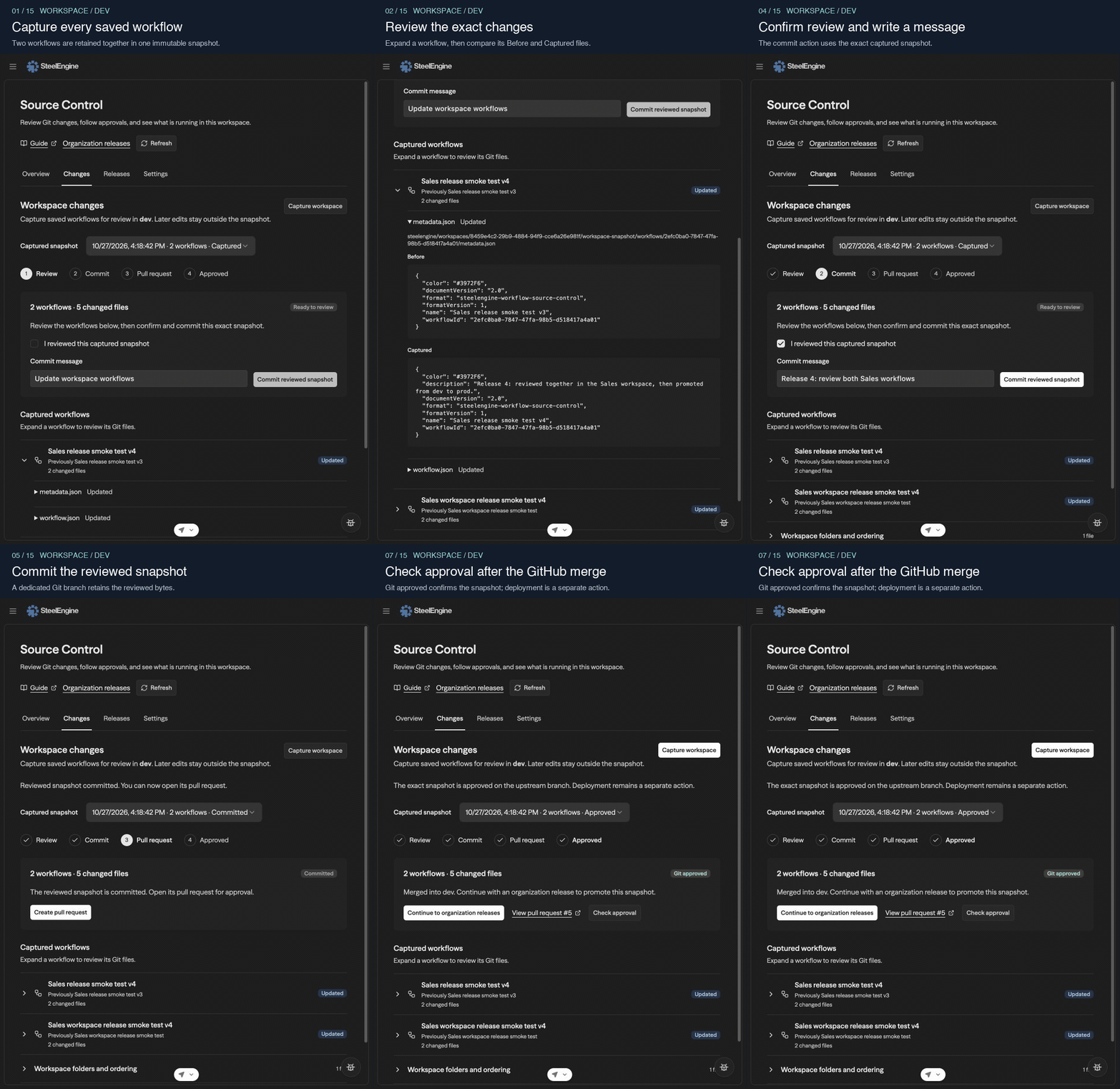
Open the complete dev-to-prod MP4 walkthrough to pause or seek through the workspace and organization steps. The numbered instructions above provide the same workspace procedure without animation.
The progress row and snapshot status show the next action. Snapshot details contains the upstream branch and exact base and reviewed commits. After approval, self-hosted installations with organization promotion enabled offer Continue to organization releases.
A lost commit or PR response can be retried without creating another commit or PR. The snapshot selector lists the latest 20 captures. A capture matching upstream has nothing to commit.
Merging the capture PR approves the snapshot. To deploy it to a locked workspace in the same installation, merge a promotion PR into its production branch, then publish manually or use its automatic deployment policy. See Production workspaces. Separate installations use Organization Releases.
What the Snapshot Contains
<managed-path>/workspace-snapshot/
  workspace.json
  workflows/<workflow-id>/
    metadata.json
    workflow.json
    layout.json
    bindings.json
    nodes/
The manifest records stable workflow IDs, names, folder placement, ordering, and folders. Workflow bundles include sanitized definitions, prompts, code, variables, interface metadata, layout, and logical resource requirements. Secret values, provider tokens, credential assignment targets, runtime data, and deployment versions stay outside Git. Other workspace objects such as apps, databases, documents, and knowledge bases are outside this capture format.
One capture supports at most 200 workflows, 4,096 files, and 16 MiB. A workflow without a readable saved definition fails the capture with its name; no workflow is silently omitted.
Promote the Approved Workspace
For two workspaces in the same installation, connect an empty production workspace to the development workspace and a fixed production branch. The GitHub push webhook synchronizes reviewed snapshots; production editing is locked and publication follows the selected deployment policy. Follow Production workspaces for setup and a recorded walkthrough.
On a self-hosted installation with organization promotion enabled, workspace approval becomes a prerequisite once this workspace has captures. Organization capture requires a merged workspace snapshot matching the current workflows and folders. Later edits, a retargeted binding, or changed upstream snapshot files require another review. The organization release records the workspace commit as workflow provenance.
Organization releases still include every workspace, including workspaces with their own repository binding. An independent binding does not exclude that workspace from organization deployment. Target readiness, preparation, and deployment remain explicit organization actions.
Existing Workflow Protection
Existing protected workflows retain their protections, synchronization, and deployment history. Their approved and live versions appear in Overview and Releases. An empty protection history is hidden when workflow controls are disabled. Individual workflow setup, editor Git actions, and the older editing-branch controls remain unavailable, even if the former environment opt-in is set.
The retained legacy Protect and Edit and Review and Deploy guides describe that paused flow for reference. Workspace snapshots do not require it.