The Agent block connects your workflow to Large Language Models (LLMs). It processes natural language inputs, calls external tools, and generates structured or unstructured outputs.
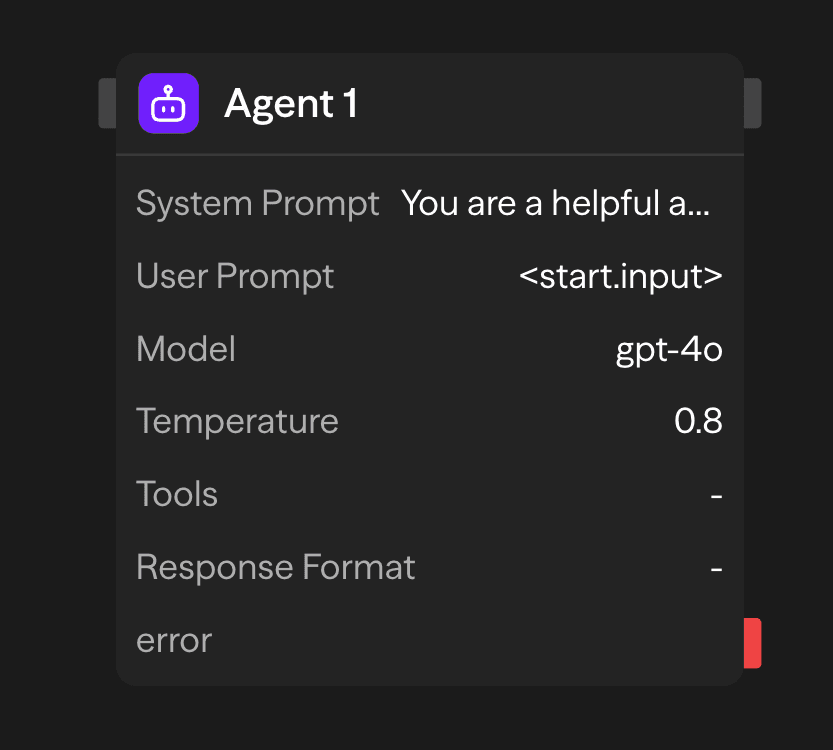
Configuration Options
Messages
The Messages field holds the conversation the model receives. It is an ordered list of messages, each with a role (system, user, or assistant) and content. System messages establish the agent's role, response methodology, and processing boundaries. User and assistant messages form the conversation the model continues. A new block starts with one empty user message.
[
  {
    "role": "system",
    "content": "You are a helpful assistant that specializes in financial analysis. Always provide clear explanations and cite sources when possible. When responding to questions about investments, include risk disclaimers."
  },
  {
    "role": "user",
    "content": "<start.input>"
  }
]
Reference upstream data inside any message with the <blockName.output> syntax, for example <start.input> or <api.data>. If you add several system messages, SteelEngine joins them into one set of instructions. Use the AI wand on the field to generate or revise the whole message list from a description.
Model
Type or select a model in the model combobox. The list covers OpenAI, Anthropic, Google, Vertex AI, Azure OpenAI, Azure Anthropic, AWS Bedrock, xAI, Deepseek, Groq, Cerebras, Mistral AI, Kimi, Fireworks, and OpenRouter, plus local models served by Ollama or a VLLM compatible endpoint. Model IDs use the vendor's spelling, for example gpt-5.4, claude-sonnet-4-6, or gemini-2.5-pro. Hosted-provider variants carry a prefix such as azure/, vertex/, or bedrock/.
Which advanced settings appear (Temperature, Reasoning Effort, Verbosity, Thinking Level) depends on the model you pick.
API Key
Your API key for the selected LLM provider. This is securely stored and used for authentication.
Provider Credentials
Some providers need more than a key. These fields appear only when you select a matching model:
- Azure Endpoint and Azure API Version: for
azure/andazure-anthropic/models - Google Cloud Account, Vertex AI Project, and Vertex AI Location: for
vertex/models. Connect a Google Cloud account with OAuth, or enter a credential ID under Advanced - AWS Access Key ID, AWS Secret Access Key, and AWS Region: for
bedrock/models
Temperature
An Advanced slider that controls response randomness and creativity. The range depends on the model. Most providers accept 0-2, and Anthropic models accept 0-1. The slider is hidden for models that do not support temperature.
- Low (0-0.3): Deterministic and focused. Best for factual tasks and accuracy.
- Medium (0.3-0.7): Balanced creativity and focus. Good for general use.
- High (0.7 up to the model's maximum): Creative and varied. Ideal for brainstorming and content generation.
Reasoning Effort, Verbosity, and Thinking Level
Three Advanced selects for models with extended reasoning. Reasoning Effort (auto, low, medium, high) and Verbosity (auto, low, medium, high) apply to OpenAI reasoning models. Thinking Level (none, minimal, low, medium, high, max) applies to Anthropic and Gemini models with thinking. Each select offers only the options the selected model supports.
Max Output Tokens
Controls the maximum length of the model's response. Each model defaults to its full max output token limit (e.g., 64,000 tokens for Claude Sonnet 4.5). You can override this with a custom value using the Max Output Tokens setting under Advanced. For Anthropic models, when non-streaming requests exceed the SDK's internal threshold, the provider automatically uses internal streaming to avoid timeouts.
Tools
Extend agent capabilities with external integrations. Select any integration tool from the toolbar, add tools from a connected MCP server, or define custom functions.
Example Categories:
- Communication: Gmail, Slack, Telegram, WhatsApp, Microsoft Teams
- Data Sources: Notion, Google Sheets, Airtable, Supabase, Pinecone
- Web Services: Firecrawl, Google Search, Exa AI, browser automation
- Development: GitHub, Jira, Linear
- AI Services: OpenAI, Perplexity, Hugging Face, ElevenLabs
Usage Control: each tool has a usage setting, shown as a small label on the tool row.
- Auto: Model decides when to use the tool based on context
- Force: Tool must be called in every request
- None: SteelEngine removes the tool before it sends the request to the model — effectively disables the tool without deleting it
Skills
Attach Agent Skills from your workspace. The agent's instructions gain a list of the attached skills with their descriptions, and the model receives a load_skill tool. When the model decides a skill is relevant, it calls load_skill and receives the skill's full instructions. Skills load on demand, so attaching several does not bloat every request.
Memory
Memory lets the agent remember earlier turns across runs without a separate block.
- None: Each run is independent
- Conversation: The full history for the conversation, trimmed to fit the model's context window
- Sliding window (messages): The most recent N messages. Set N in Sliding Window Size (default 10)
- Sliding window (tokens): The most recent messages that fit a token budget. Set the budget in Max Tokens (default 4,000)
Any mode other than None requires a Conversation ID, for example user-123 or a reference to an upstream field. Runs that share a Conversation ID share a history. On the first run for an ID, the user and assistant messages in Messages seed the history. On later runs, the block loads the stored history and appends the latest user message from Messages. System messages are never stored.
Response Format
The Response Format parameter enforces structured output generation through JSON Schema validation. This ensures consistent, machine-readable responses that conform to predefined data structures:
{
  "name": "user_analysis",
  "schema": {
    "type": "object",
    "properties": {
      "sentiment": {
        "type": "string",
        "enum": ["positive", "negative", "neutral"]
      },
      "confidence": {
        "type": "number",
        "minimum": 0,
        "maximum": 1
      }
    },
    "required": ["sentiment", "confidence"]
  }
}
This configuration constrains the model's output to comply with the specified schema, preventing free-form text responses and ensuring structured data generation.
Previous Interaction ID
Shown only for the Google deep-research-pro-preview-12-2025 model (and its vertex/ variant). Pass the interactionId output of an earlier Agent block to continue that research session. This model does not expose Tools, Skills, Memory, Response Format, or Max Output Tokens.
Accessing Results
After an agent completes, you can access its outputs:
<agent.content>: The agent's response text or structured data<agent.tokens>: Token usage statistics (input,output,total)<agent.toolCalls>: Tool execution details (list,count)<agent.providerTiming>: Provider and tool execution timing details<agent.cost>: Estimated cost of the API call (input,output,toolCost,total,pricing), if available<agent.interactionId>: Provider interaction identifier, when the provider returns one
Advanced Features
Memory + Agent: Conversation History
Set Memory on the Agent block to a mode other than None and give it a Conversation ID (see Memory above). The block loads the stored history before each request and appends the new turn after it. Chat-style workflows need no extra blocks.
For history you want to read or write from other blocks, or to share between agents, use the Memory block with a consistent id and reference its output in Messages.
Model Availability
Organization admins can disable models in the Model availability section of the organization settings, and workspace settings can disable more for one workspace. The Agent block checks the selected model against these restrictions before every run. A run that names a disabled model fails at that block.
Outputs
<agent.content>: Agent's response text<agent.model>: Model identifier used for the request<agent.tokens>: Token usage statistics (input,output,total)<agent.toolCalls>: Tool execution details (list,count)<agent.providerTiming>: Provider and tool execution timing details<agent.cost>: Estimated API call cost (input,output,toolCost,total,pricing)<agent.interactionId>: Provider interaction identifier, when available
Example Use Cases
Customer Support Automation - Handle inquiries with database and tool access
API (Ticket) → Agent (Postgres, KB, Linear) → Gmail (Reply) → Memory (Save)Multi-Model Content Analysis - Analyze content with different AI models
Function (Process) → Agent (GPT-4o Technical) → Agent (Claude Sentiment) → Function (Report)Tool-Powered Research Assistant - Research with web search and document access
Input → Agent (Google Search, Notion) → Function (Compile Report)Best Practices
- Be specific in system messages: Clearly define the agent's role, tone, and limitations. The more specific your instructions are, the better the agent will be able to fulfill its intended purpose.
- Choose the right temperature setting: Use lower temperature settings (0-0.3) when accuracy is important, or increase temperature toward the model's maximum for more creative or varied responses
- Leverage tools effectively: Integrate tools that complement the agent's purpose and enhance its capabilities. Be selective about which tools you provide to avoid overwhelming the agent. For tasks with little overlap, use another Agent block for the best results.