The Model Context Protocol (MCP) allows you to connect external tools and services using a standardized protocol, enabling you to integrate APIs and services directly into your workflows. With MCP, you can extend SteelEngine's capabilities by adding custom integrations that work seamlessly with your agents and workflows.
What is MCP?
MCP is an open standard that enables AI assistants to securely connect to external data sources and tools. It provides a standardized way to:
- Connect to databases, APIs, and file systems
- Access real-time data from external services
- Execute custom tools and scripts
- Maintain secure, controlled access to external resources
Configuring MCP Servers
MCP servers provide collections of tools that your agents can use. Configure them in workspace settings:
- Navigate to your workspace settings
- Go to the MCP Tools section
- Click Add
- Enter a Server Name and Server URL, plus any headers the server needs. Use
{{VAR}}to pull secrets from environment variables - To paste a client-style
mcpServersconfig instead, click Edit JSON. SteelEngine imports the first server in the config - Optionally click Test Connection
- Click Add MCP
You can also configure MCP servers directly from the toolbar in an Agent block for quick setup. MCP Tools is where you connect external servers. The separate MCP Servers section publishes your own workflows as tools (see Deploy Workflows as MCP).
Refresh Tools
Click Refresh Tools on a server to fetch the latest tool schemas. SteelEngine then updates any agent blocks that use those tools with the new parameter definitions. Tool lists also refresh on their own. When a server announces that its tools changed, or a workflow published as an MCP tool changes, the settings page and tool pickers reload without a manual refresh.
Allowed Server Domains
Operators can restrict which hosts a workspace may connect to with the ALLOWED_MCP_DOMAINS environment variable, a comma-separated list of hostnames. When it is set, the add and edit forms reject other hosts with "Domain not permitted by server policy". SteelEngine also ignores servers already saved with a host outside the list. When it is unset, any host is allowed.
Using MCP Tools in Agents
Once MCP servers are configured, their tools become available within your agent blocks:
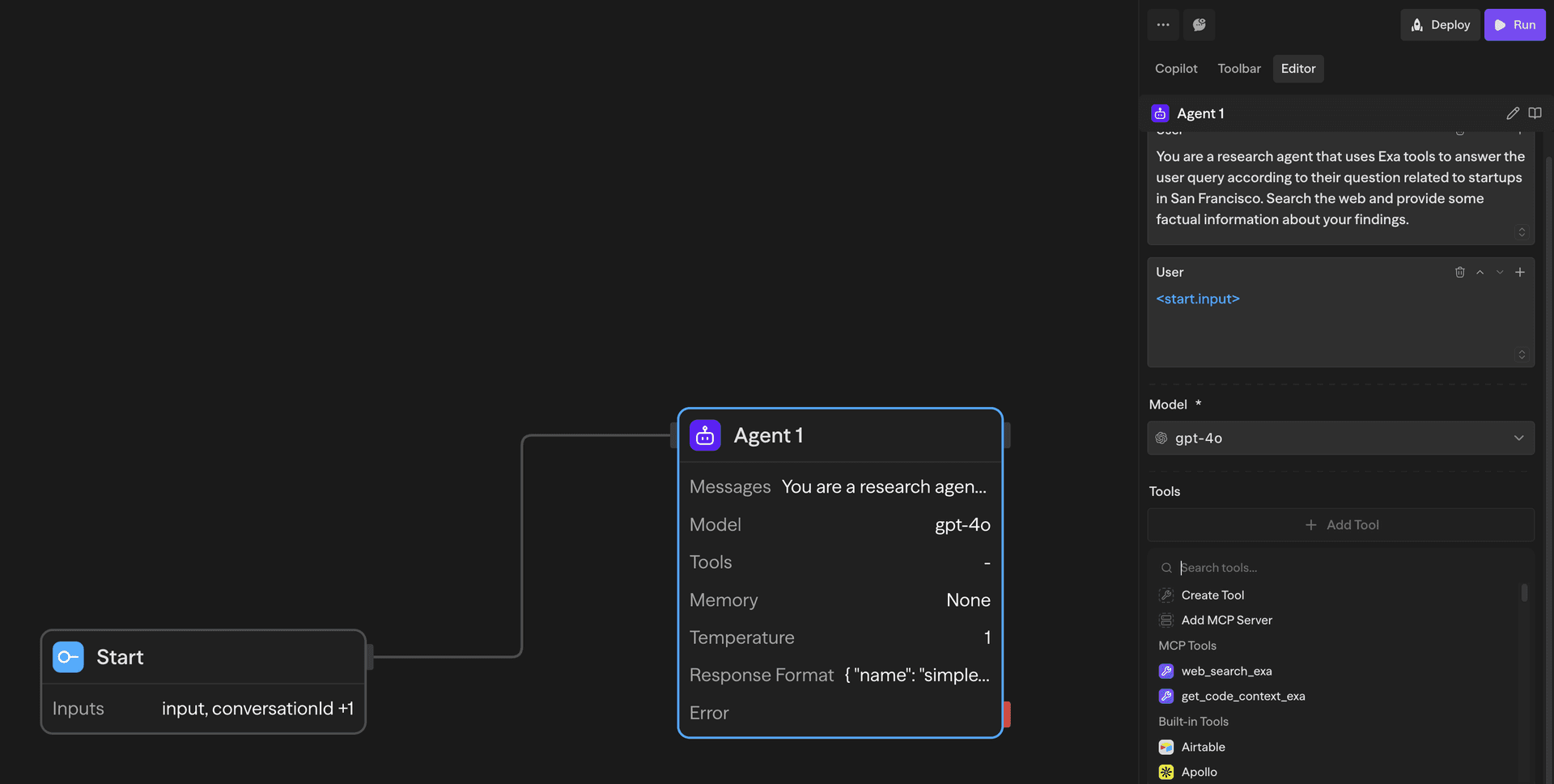
- Open an Agent block
- In the Tools section, you'll see available MCP tools
- Select the tools you want the agent to use
- The agent can now access these tools during execution
Standalone MCP Tool Block
For more granular control, you can use the dedicated MCP Tool block to execute specific MCP tools:
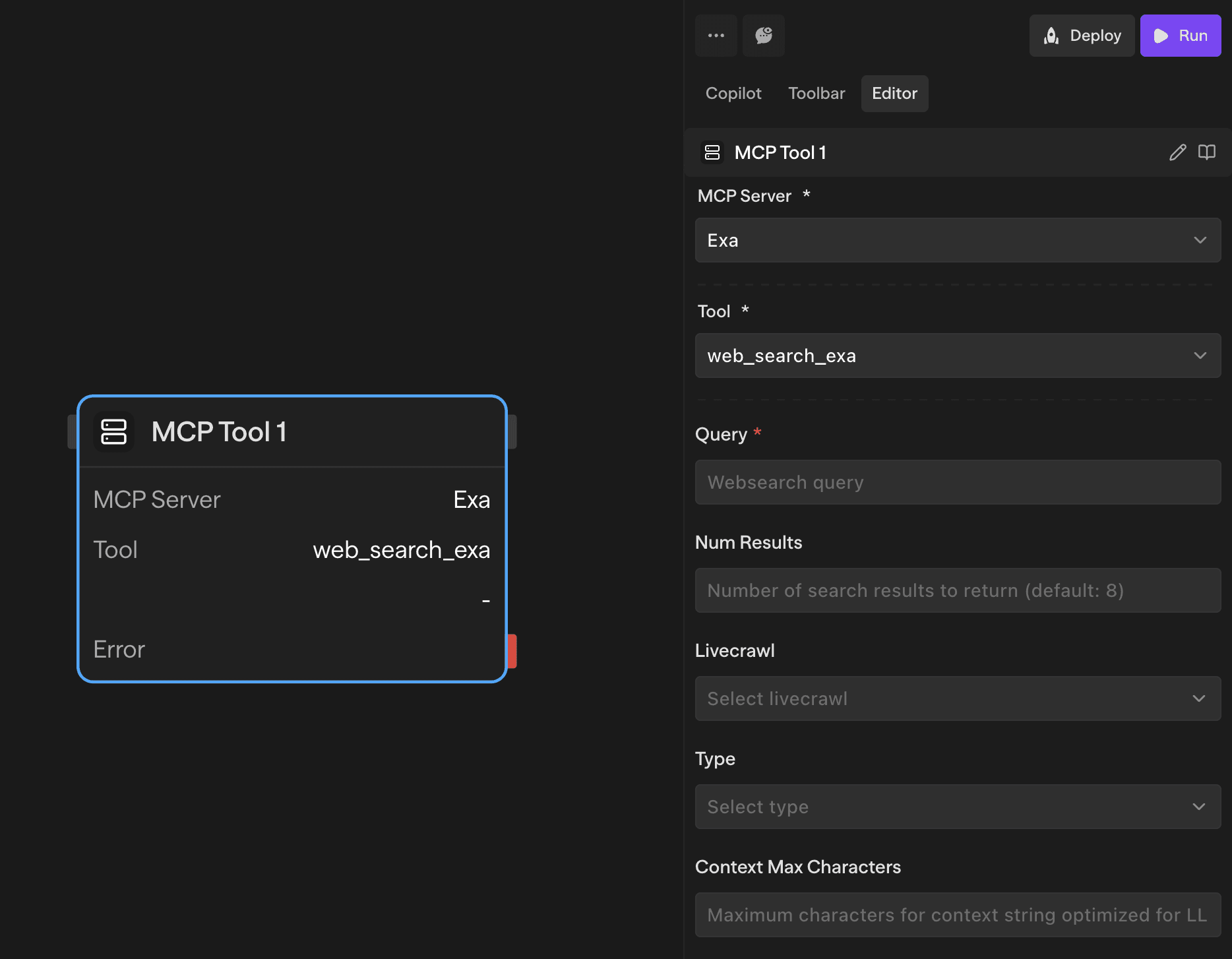
The MCP Tool block allows you to:
- Execute any configured MCP tool directly
- Pass specific parameters to the tool
- Use the tool's output in subsequent workflow steps
- Chain multiple MCP tools together
When to Use MCP Tool vs Agent
Use Agent with MCP tools when:
- You want the AI to decide which tools to use
- You need complex reasoning about when and how to use tools
- You want natural language interaction with the tools
Use MCP Tool block when:
- You need deterministic tool execution
- You want to execute a specific tool with known parameters
- You're building structured workflows with predictable steps
Permission requirements
MCP access follows the roles assigned to the person in the target workspace. Seeded and custom roles can carry these catalog permissions:
| Action | Relevant catalog permissions |
|---|---|
| View the workspace MCP area | workspace:read_mcp |
| List server metadata and available tools | mcp_server:read, mcp_tool:list |
| Add or update a server | workspace:manage_mcp, mcp_server:manage |
| Refresh a server's tools | mcp_server:refresh |
| Delete a server | mcp_server:delete |
| Call an MCP tool | mcp_tool:call, with the applicable MCP scope and workflow permissions |
Role names do not determine the result. A custom role with only MCP read permissions can inspect connections without changing or calling them. A role with call permission can use tools only where its assignment scope and the workflow's access also apply.
See Permission Catalog Reference and How Effective Access Is Calculated.
Common Use Cases
Database Integration
Connect to databases to query, insert, or update data within your workflows.
API Integrations
Access external APIs and web services that don't have built-in SteelEngine integrations.
File System Access
Read, write, and manipulate files on local or remote file systems.
Custom Business Logic
Execute custom scripts or tools specific to your organization's needs.
Real-time Data Access
Fetch live data from external systems during workflow execution.
Security considerations
- SteelEngine policy controls who can configure, inspect, select, and call MCP tools
- The remote server's credentials determine what the remote service itself can access
- Always verify MCP server sources before installation
- Use environment variables for sensitive configuration data
- Review MCP server capabilities before granting access to agents
Troubleshooting
MCP Server Not Appearing
- Verify the server configuration is correct
- Check that you have the required permissions
- Ensure the MCP server is running and accessible
Tool Execution Failures
- Verify tool parameters are correctly formatted
- Check MCP server logs for error messages
- Ensure required authentication is configured
Permission Errors
- Open Organization Settings → Access and inspect your effective roles for the workspace
- Confirm the role includes the catalog permission for the attempted MCP action
- Check direct, group, inherited, and organization-wide assignment paths
- Check if the MCP server requires additional authentication
- Verify the server is properly configured for your workspace