The Human in the Loop block pauses workflow execution and waits for human intervention before continuing. Use it to add approval gates, collect feedback, or gather additional input at critical decision points.
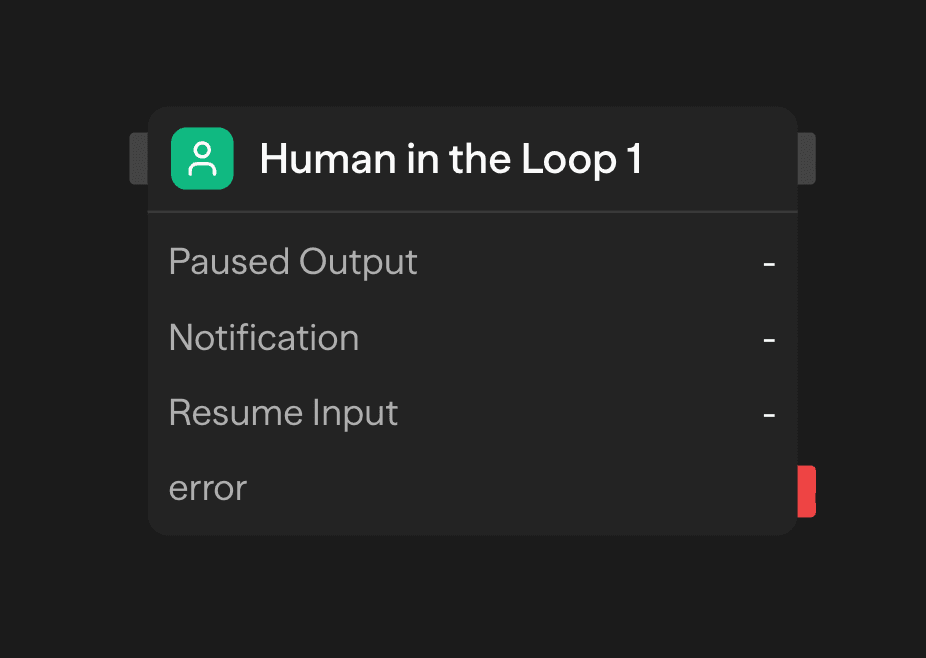
When execution reaches this block, the workflow pauses indefinitely until a human provides input through the approval portal, API, or webhook.
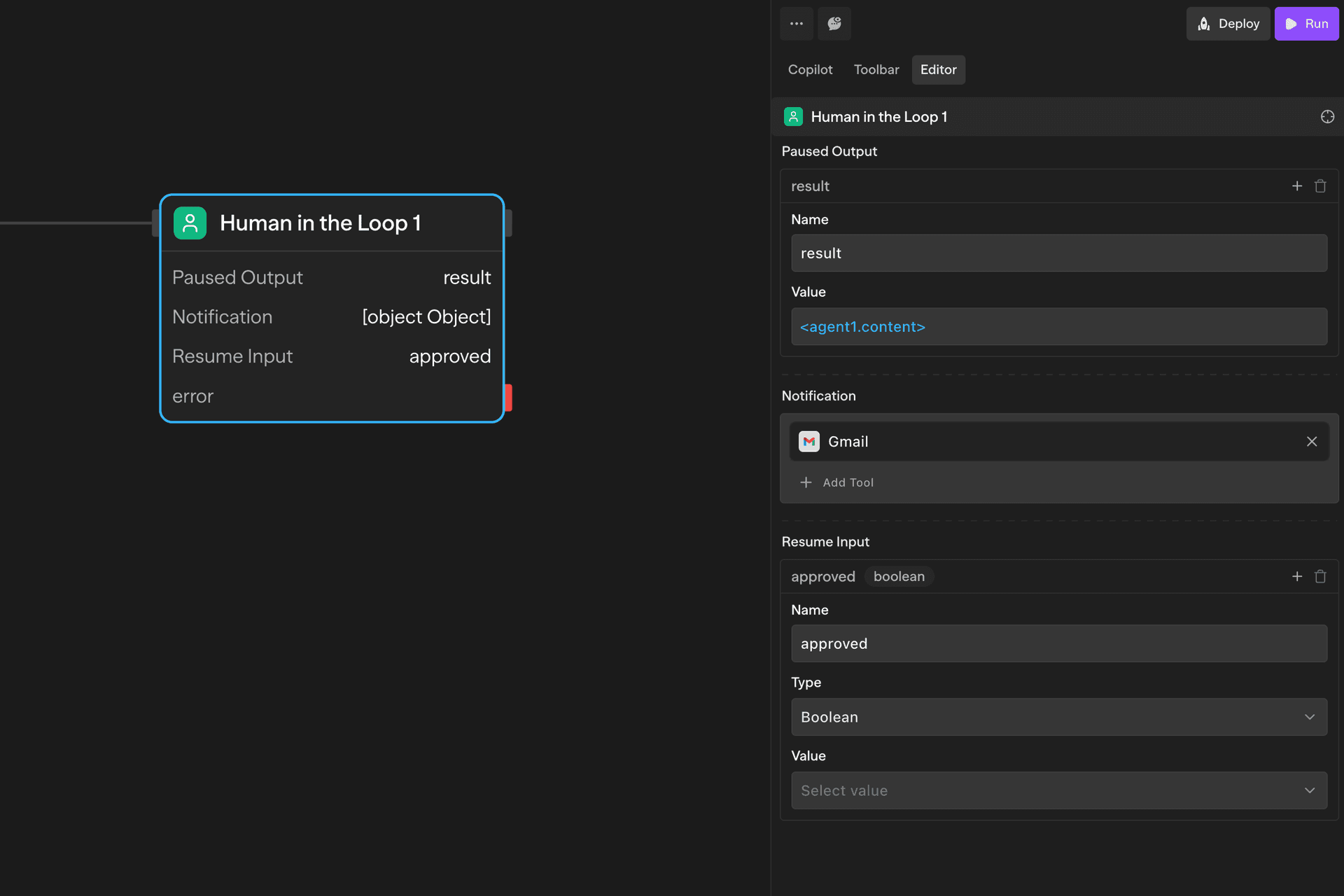
Configuration Options
Display Data
Defines what data is displayed to the approver. This is the context shown in the approval portal to help them make an informed decision.
Use the visual builder or JSON editor to structure the data. Reference workflow variables using <blockName.output> syntax.
{
  "customerName": "<agent1.content.name>",
  "proposedAction": "<router1.selectedPath>",
  "confidenceScore": "<evaluator1.score>",
  "generatedEmail": "<agent2.content>"
}
Notification
Configures how approvers are alerted when approval is needed. Supported channels include:
- Slack - Messages to channels or DMs
- Gmail - Email with approval link
- Microsoft Teams - Team channel notifications
- SMS - Text alerts via Twilio
- Webhooks - Custom notification systems
Include the approval URL (<blockId.url>) in your notification messages so approvers can access the portal.
Resume Form
Defines the fields approvers fill in when responding. This data becomes available to downstream blocks after the workflow resumes.
{
  "approved": {
    "type": "boolean",
    "description": "Approve or reject this request"
  },
  "comments": {
    "type": "string",
    "description": "Optional feedback or explanation"
  }
}
Access resume data in downstream blocks using <blockId.fieldName>.
Approval Methods
Approval Portal
Every block generates a unique portal URL (<blockId.url>) with a visual interface showing all paused output data and form fields for resume input. Mobile-responsive and secure.
Share this URL in notifications for approvers to review and respond.
API Execute Behavior
When triggering a workflow via the execute API (POST /api/workflows/{id}/execute), HITL blocks cause the execution to pause and return the _resume data in the response:
The response includes the full pause data with resume URLs:
{
  "success": true,
  "executionId": "<executionId>",
  "output": {
    "data": {
      "operation": "human",
      "_resume": {
        "apiUrl": "/api/resume/{workflowId}/{executionId}/{contextId}",
        "uiUrl": "/resume/{workflowId}/{executionId}",
        "contextId": "<contextId>",
        "executionId": "<executionId>",
        "workflowId": "<workflowId>"
      }
    }
  }
}
Common Use Cases
Content Approval - Review AI-generated content before publishing
Agent → Human in the Loop → API (Publish)Multi-Stage Approvals - Chain multiple approval steps for high-stakes decisions
Agent → Human in the Loop (Manager) → Human in the Loop (Director) → ExecuteData Validation - Verify extracted data before processing
Agent (Extract) → Human in the Loop (Validate) → Function (Process)Quality Control - Review AI outputs before sending to customers
Agent (Generate) → Human in the Loop (QA) → Gmail (Send)Block Outputs
url - Unique URL for the approval portal
resumeEndpoint - Resume API endpoint URL
response - Display data shown to the approver (json)
submission - Form submission data from the approver (json)
submittedAt - ISO timestamp when the workflow was resumed
<fieldName> - All fields defined in Resume Form become available at the top level after the workflow resumes
Access using <blockId.fieldName>.
Example
Paused Output:
{
  "title": "<agent1.content.title>",
  "body": "<agent1.content.body>",
  "qualityScore": "<evaluator1.score>"
}
Resume Input:
{
  "approved": { "type": "boolean" },
  "feedback": { "type": "string" }
}
Downstream Usage:
// Condition block
<approval1.approved> === true
The example below shows an approval portal as seen by an approver after the workflow is paused. Approvers can review the data and provide inputs as a part of the workflow resumption. The approval portal can be accessed directly via the unique URL, <blockId.url>.
Related Blocks
- Condition - Branch based on approval decisions
- Variables - Store approval history and metadata
- Response - Return workflow results to API callers