Overview
Upload, process, and search through your documents with intelligent vector search and chunking
The knowledgebase allows you to upload, process, and search through your documents with intelligent vector search and chunking. Documents of various types are automatically processed, embedded, and made searchable. Your documents are intelligently chunked, and you can view, edit, and search through them using natural language queries.
Use Docs when people or automation need to create, edit, organize, preview, or share a file. Use a Knowledge Base when an agent needs retrieval-optimized context. A Workspace Doc can be a Knowledge Base source without the two becoming the same resource.
Upload and Processing
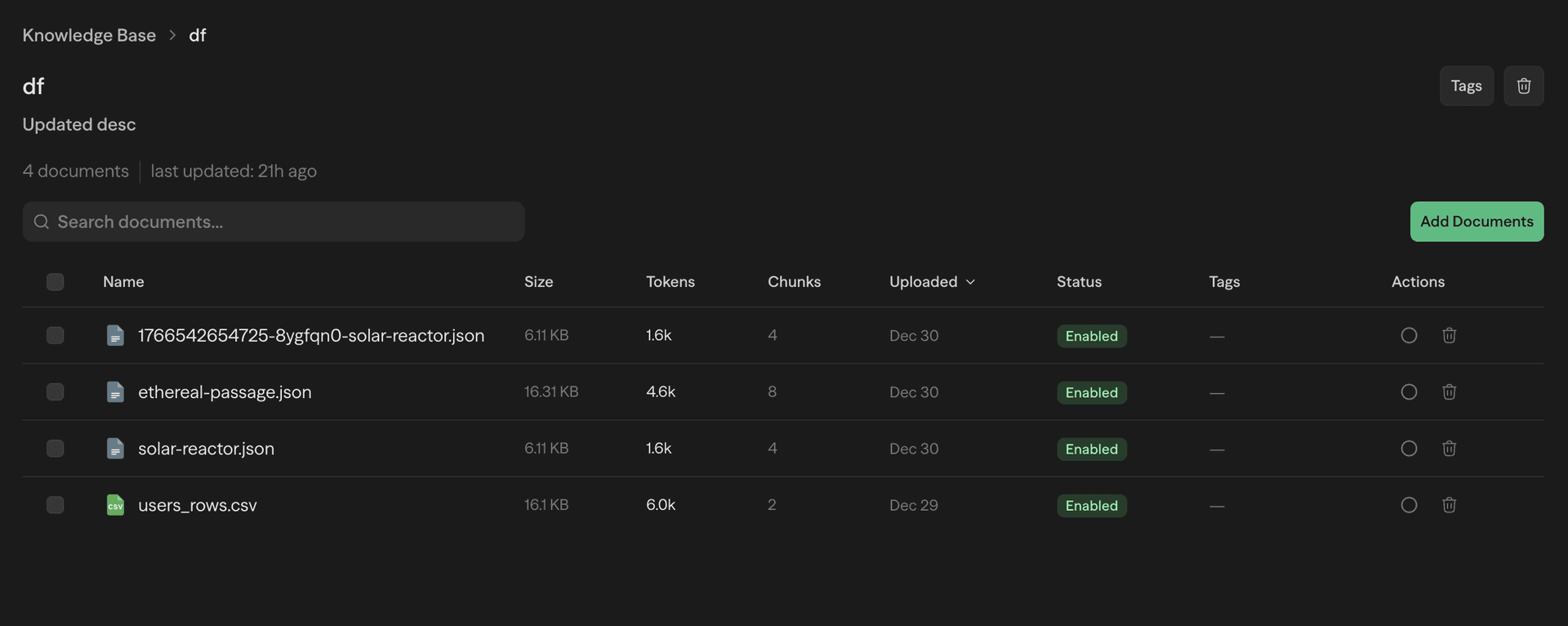
Simply upload your documents to get started. SteelEngine automatically processes them in the background, extracting text, creating embeddings, and breaking them into searchable chunks.
The system handles the entire processing pipeline for you:
- Text Extraction: Content is extracted from your documents using specialized parsers for each file type
- Intelligent Chunking: Documents are broken into meaningful chunks with configurable size and overlap
- Embedding Generation: Vector embeddings are created for semantic search capabilities
- Processing Status: Track the progress as your documents are processed
Supported File Types
SteelEngine supports PDF, Word (DOC/DOCX), plain text (TXT), Markdown (MD), HTML, HTM, Excel (XLS/XLSX), PowerPoint (PPT/PPTX), CSV, JSON, and YAML/YML files. Files can be up to 100MB each, with optimal performance for files under 50MB. You can upload multiple documents simultaneously, and PDF files include OCR processing for scanned documents.
Viewing and Editing Chunks
Once your documents are processed, you can view and edit the individual chunks. This gives you full control over how your content is organized and searched.
Chunk Configuration
When creating a knowledge base, you can configure how documents are split into chunks:
| Setting | Unit | Default | Range | Description |
|---|---|---|---|---|
| Max Chunk Size | tokens | 1,024 | 100-4,000 | Maximum size of each chunk (1 token ≈ 4 characters) |
| Min Chunk Size | characters | 100 | 1-2,000 | Minimum chunk size to avoid tiny fragments |
| Overlap | tokens | 200 | 0-500 | Context overlap between consecutive chunks |
- Hierarchical splitting: Respects document structure (sections, paragraphs, sentences)
- Consistent sizes: The minimum chunk size (in characters) must be smaller than the maximum chunk size converted to characters (tokens × 4)
Editing Capabilities
- Edit chunk content: Modify the text content of individual chunks
- Add chunks: Click New chunk on a document to add a chunk by hand
- Enable or disable chunks: Disabled chunks stay in the document but are left out of search results
- Delete chunks: Remove chunks you no longer want searchable
- Bulk operations: Select several chunks and enable, disable, or delete them together
Chunks of documents synced by a connector are read-only. The connector rewrites them on each sync.
Advanced PDF Processing
For PDF documents, SteelEngine offers enhanced processing capabilities:
OCR Support
When configured with Azure or Mistral OCR:
- Scanned document processing: Extract text from image-based PDFs
- Mixed content handling: Process PDFs with both text and images
- High accuracy: Advanced AI models ensure accurate text extraction
Using The Knowledge Block in Workflows
Once your documents are processed, you can use them in your AI workflows through the Knowledge block. This enables Retrieval-Augmented Generation (RAG), allowing your AI agents to access and reason over your document content to provide more accurate, contextual responses.
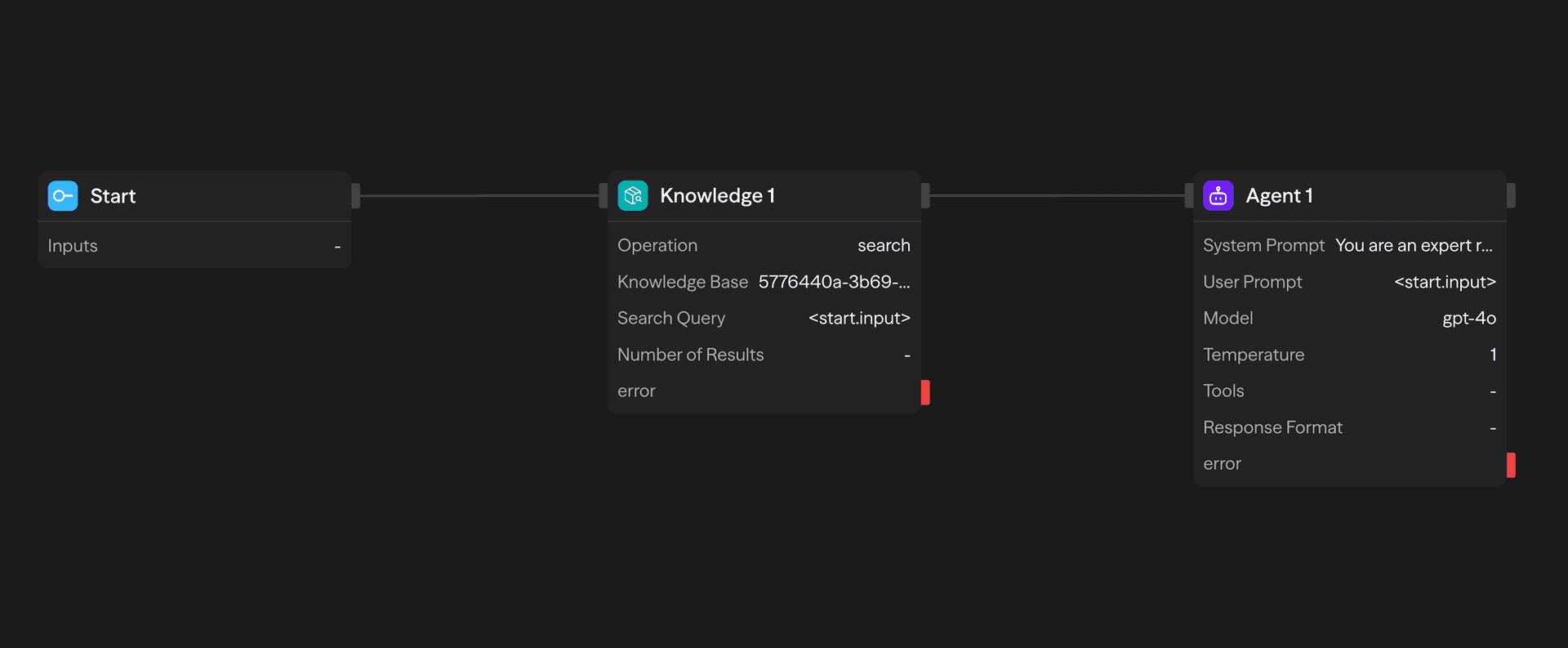
The block's default operation is Search. It also offers operations to manage the knowledge base from a workflow:
- Documents: list, get, create, upsert, and delete
- Chunks: list, upload, update, and delete
- Tags: list
- Connectors: list, get, and trigger a sync
See the Knowledge block reference for every operation's inputs and outputs.
Knowledge Block Features
- Semantic search: Find relevant content using natural language queries
- Context integration: Automatically include relevant chunks in agent prompts
- Dynamic retrieval: Search happens in real-time during workflow execution
- Relevance scoring: Results ranked by semantic similarity
Integration Options
- System prompts: Provide context to your AI agents
- Dynamic context: Search and include relevant information during conversations
- Multi-document search: Query across your entire knowledgebase
- Filtered search: Combine with tags for precise content retrieval
Vector Search Technology
SteelEngine uses vector search powered by pgvector to understand the meaning and context of your content. Chunks are embedded with OpenAI's text-embedding-3-small model (1,536 dimensions), and a search embeds your query the same way and ranks chunks by cosine distance.
Semantic Understanding
- Contextual search: Finds relevant content even when exact keywords don't match
- Concept-based retrieval: Understands relationships between ideas
- Multi-language support: Works across different languages
- Synonym recognition: Finds related terms and concepts
Search Capabilities
- Natural language queries: Ask questions in plain English
- Similarity search: Find conceptually similar content
- Tag filtering: Narrow the search to documents with matching tags, or fetch tagged documents without a query at all
- Configurable results: Control the number of results with Number of Results (1-100, default 10)
Search is vector similarity plus tag filters. There is no keyword or hybrid mode, and the similarity cutoff is fixed rather than a search parameter.
Document Management
Organization Features
- Bulk upload: Upload multiple files at once via the asynchronous API
- Processing status: Real-time updates on document processing
- Search and filter: Find documents quickly in large collections
- Metadata tracking: Automatic capture of file information and processing details
Security and Privacy
- Secure storage: Documents stored with enterprise-grade security
- Access control: Workspace-based permissions
- Processing isolation: Each workspace has isolated document processing
Recently Deleted and Restore
Deleting a knowledge base does not remove it immediately. It moves to Settings → Recently Deleted. Filter by Knowledge Bases and select Restore to bring it back with its documents, chunks, and tags intact. Restoring requires the knowledge_base:restore permission, which the seeded Editor role includes.
Bring Your Own Key for Embeddings and OCR
Knowledge base processing uses two external providers: OpenAI for embeddings and Mistral for OCR of scanned PDFs. When your workspace or organization has a BYOK key for either provider, processing uses that key. Embedding tokens generated with a BYOK key do not count toward your SteelEngine usage. Without a BYOK key, SteelEngine uses its own key and records the embedding tokens as usage.
Getting Started
- Navigate to your knowledgebase: Access from your workspace sidebar
- Upload documents: Drag and drop or select files to upload
- Monitor processing: Watch as documents are processed and chunked
- Explore chunks: View and edit the processed content
- Add to workflows: Use the Knowledge block to integrate with your AI agents
The knowledgebase transforms your static documents into an intelligent, searchable resource that your AI workflows can leverage for more informed and contextual responses.