Copilot

Your workflow-scoped AI assistant for building and editing workflows.

Copilot is built into the workflow editor. It reads the workflow you have open, understands the blocks and connections that already exist, and can explain, edit, debug, and improve that workflow from natural language.

For workspace-wide work across workflows, tables, files, knowledge bases, and scheduled jobs, use Mothership.

Copilot is included with hosted SteelEngine plans. Self-hosted deployments need a Copilot API key configured in COPILOT_API_KEY.

What Copilot Can Do

Copilot can work directly against the current workflow:

  • Add, configure, connect, and delete workflow blocks
  • Edit existing block settings without rebuilding the whole workflow
  • Explain what the workflow does and how data flows through it
  • Debug failed runs by reading execution logs and current block state
  • Suggest leaner block choices, better models, safer credentials, and cleaner data flow

Modes

Use the mode selector at the bottom of the Copilot input to choose how much agency Copilot has.

Ask

Read-only help. Copilot can inspect and explain, but it cannot create, edit, or delete workflow resources.

Build

Workflow editing mode. Copilot can add blocks, wire connections, update settings, and debug issues.

Plan

Planning mode. Copilot drafts the exact implementation steps without making changes.
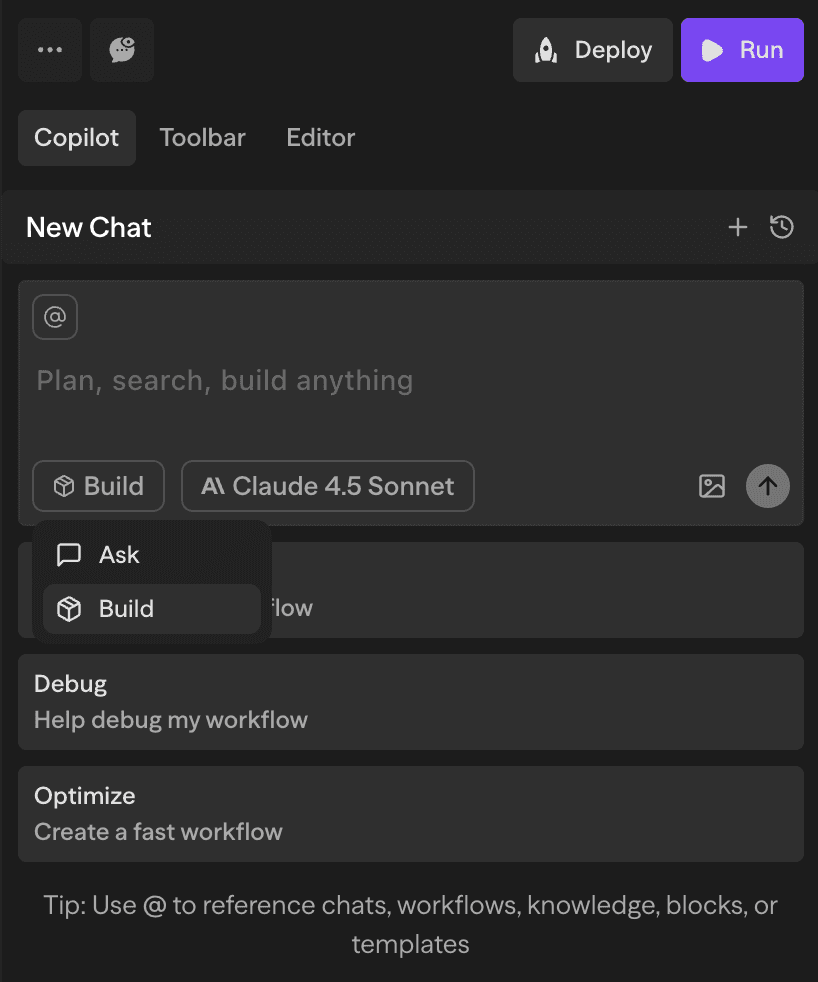
Copilot mode selector

Models

Use the model selector at the bottom of the Copilot input to choose the model for the next workflow-scoped response. Faster models are better for quick explanations and small edits; stronger models are better for deep debugging and complex workflow design.
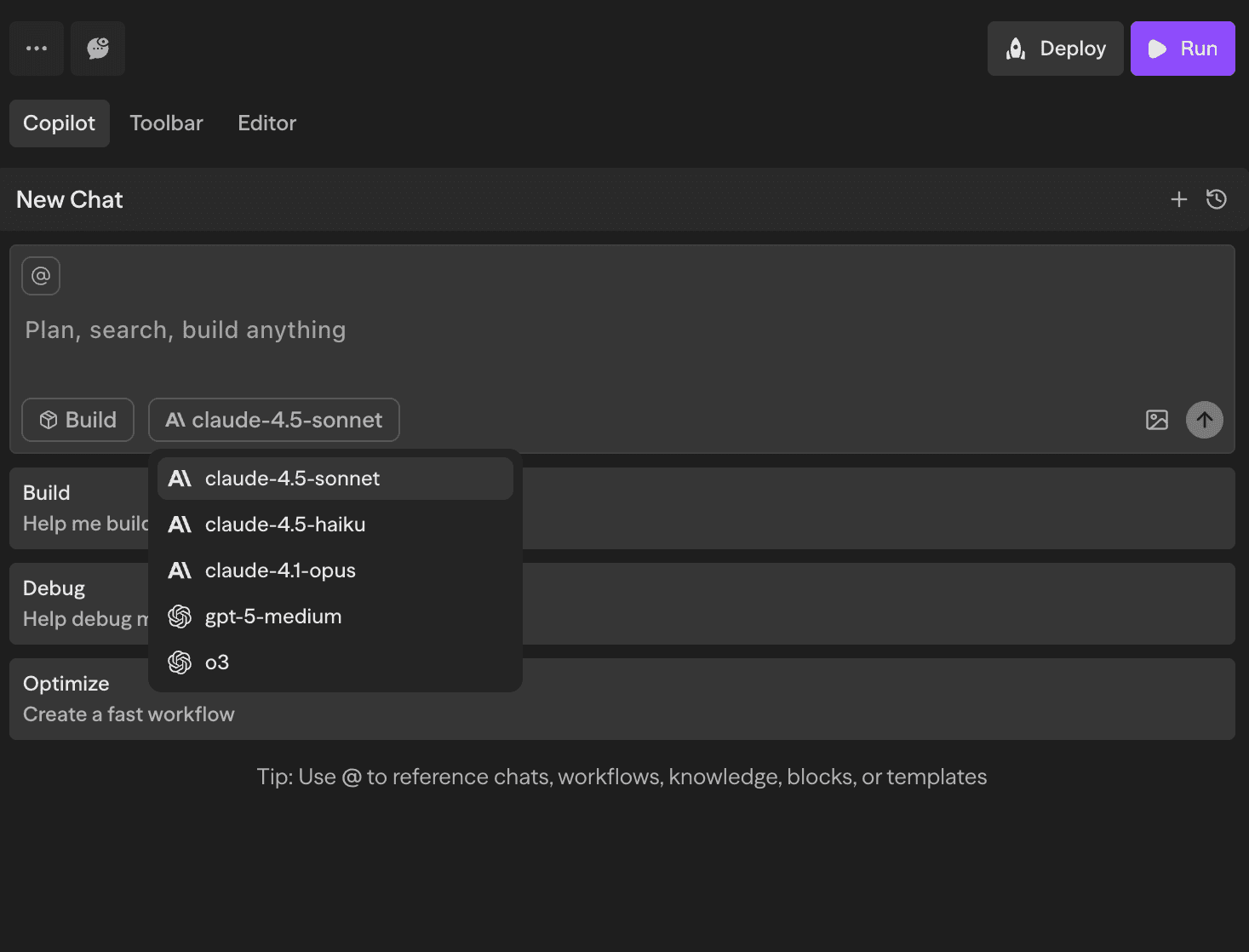
Copilot model selector

The available model list is loaded dynamically from SteelEngine's Copilot backend, so it may change as new models are rolled out.

Context

Copilot automatically receives the current workflow as context. You can add more context from the input:

  • Type @ to reference workflows, workflow blocks, logs, knowledge bases, tables, files, docs, templates, or prior chats
  • Use the + menu to attach workspace resources or files
  • Drag workspace resources into the input when you want Copilot to use them

When you ask Copilot to edit an existing workflow, it reads what is already there before applying changes. You do not need to restate the current blocks, connections, or settings unless you want to override them.

Chat History

Click History in the Copilot header to see past conversations for the current workflow. You can resume any chat, start a new one, or delete old chats you no longer need.

File Attachments

Click the attachment icon or drag files into the input to include files with your message. Copilot can use images, PDFs, text files, JSON, XML, and other document formats as context.

Checkpoints

When Copilot modifies a workflow, it saves a checkpoint of the previous workflow state.

To revert, hover over the Copilot message that made the change, open the checkpoint menu, and choose the state you want to restore. Reverting cannot be undone, so review the checkpoint before confirming.

Thinking Blocks

For complex requests, Copilot may show an expandable thinking block while it works. These blocks make long-running edits easier to follow without mixing hidden reasoning into the final answer.

Usage

Copilot usage is billed per token and counts toward your plan's credit usage. If you reach your limit, enable on-demand billing from Settings → Subscription.

See the Cost Calculation page for billing and plan details.

Copilot MCP

You can use Copilot as an MCP server from external editors and AI clients. This lets you build, test, deploy, and manage SteelEngine workflows from tools like Claude.ai, Cursor, Claude Code, Claude Desktop, and VS Code.

The endpoint supports two authentication methods:

  • OAuth — clients that support MCP OAuth (like Claude.ai) sign in through the browser. No key to create or rotate.
  • Copilot API key — for clients that authenticate with an X-API-Key header.

Claude.ai (Custom Connector)

Claude.ai connects through OAuth — no API key needed:

  1. In Claude.ai, open SettingsConnectors
  2. Click Add custom connector and enter {{APP_URL}}/api/mcp/copilot
  3. Complete the sign-in and consent flow in the browser

SteelEngine issues OAuth 2.1 tokens scoped to mcp:tools, with refresh-token support — the connector stays authorized without manual key rotation. Any MCP client that supports OAuth discovers the flow automatically from the endpoint's WWW-Authenticate challenge and resource metadata.

Generating a Copilot API Key

  1. Sign in to steelengine.com
  2. Navigate to workspace SettingsAPI Keys and find the Copilot keys group
  3. Click Create
  4. Copy the key immediately — it is only shown once

The key will look like sk-steelengine-....

Cursor

Add the following to .cursor/mcp.json:

{
  "mcpServers": {
    "steelengine-copilot": {
      "url": "https://steelengine.com/api/mcp/copilot",
      "headers": {
        "X-API-Key": "YOUR_COPILOT_API_KEY"
      }
    }
  }
}

Claude Code

claude mcp add steelengine-copilot \
  --transport http \
  https://steelengine.com/api/mcp/copilot \
  --header "X-API-Key: YOUR_COPILOT_API_KEY"

Claude Desktop

Claude Desktop requires mcp-remote. Add this to ~/Library/Application Support/Claude/claude_desktop_config.json on macOS:

{
  "mcpServers": {
    "steelengine-copilot": {
      "command": "bunx",
      "args": [
        "mcp-remote",
        "https://steelengine.com/api/mcp/copilot",
        "--header",
        "X-API-Key: YOUR_COPILOT_API_KEY"
      ]
    }
  }
}

VS Code

Add this to settings.json or .vscode/settings.json:

{
  "mcp": {
    "servers": {
      "steelengine-copilot": {
        "type": "http",
        "url": "https://steelengine.com/api/mcp/copilot",
        "headers": {
          "X-API-Key": "YOUR_COPILOT_API_KEY"
        }
      }
    }
  }
}

For self-hosted deployments, replace {{APP_URL}} with your self-hosted SteelEngine URL.

Available Tools

Connected clients get SteelEngine's domain tools. Each one is operation-based, covering a full resource area:

ToolWhat it covers
steelengine_workflowsCreate, edit, validate, run, and deploy workflows
steelengine_workspacesList and inspect workspaces
steelengine_tablesCreate and query tables, insert rows
steelengine_knowledgeCreate and query knowledge bases, add files
steelengine_docsRead and write workspace docs and folders
steelengine_jobsCreate scheduled jobs
steelengine_envManage environment variables and BYOK keys
steelengine_credentialsList credentials and generate OAuth authorization links
steelengine_mcp_serversManage workspace MCP server connections
steelengine_skillsManage reusable skills
steelengine_memoryStore and recall assistant memory
steelengine_logsInspect execution logs
steelengine_platformSearch blocks, tools, and documentation
steelengine_a2aManage A2A agents

Common Questions

Copilot is scoped to the workflow you have open. It reads and edits that workflow's blocks and connections. Mothership has workspace-wide context and can manage workflows, tables, files, knowledge bases, scheduled jobs, integrations, and research from one chat.
Yes. Copilot automatically receives the current workflow state. When editing an existing workflow, it should understand the existing blocks, settings, and connections before making changes.
Yes. Use Ask mode for read-only questions or Plan mode when you want an implementation plan before any edits are made.
Yes. Copilot saves checkpoints before workflow changes. You can restore a checkpoint from the relevant Copilot message. Reverting cannot be undone.
Copilot usage is billed per token and counts toward your plan's credit usage. If you reach your limit, enable on-demand billing from Settings > Subscription.
No. Add the Copilot MCP URL as a custom connector and Claude.ai signs in through OAuth, staying authorized via refresh tokens. API keys remain available for clients that authenticate with an X-API-Key header.

On this page